Walmart Marketplace has seen explosive growth in recent years, and 2025 is no exception. In the first five months of the year, over 44,000 new sellers joined the platform. It’s clear that for online merchants looking to diversify their channels, Walmart is a go-to option.
If you’re wondering how to list on Walmart Marketplace, this guide is for you. Using M2E Multichannel Connect, you can publish your Walmart listings, keep them updated in real-time, and manage inventory from your e-commerce platform.
Let’s explore why Walmart should be on your radar and how to get started with M2E.
Why sell on Walmart Marketplace
Your growth strategy starts with where you sell. Here’s why many merchants turn to Walmart Marketplace:
- Access to a massive and diverse audience
Walmart.com receives over 430 million monthly visits. That’s an enormous opportunity to present your products to a wide range of US shoppers, from budget-conscious families to millennial homeowners.
- Lower seller saturation
Compared to platforms like Amazon, Walmart has a more selective approval process and fewer active sellers, approximately 200,000. You can expect less competition and more room for your listings’ visibility without excessive ad spend.
- No monthly listing fees
Walmart operates on a pay-per-sale model, meaning you’re only charged a referral fee (typically 6-15% depending on the category) when you make a sale. You won’t notice any upfront listing fees or recurring charges.
- Built-in trust
The Walmart name carries strong consumer trust. When your products appear on Walmart.com, shoppers are more likely to buy because they assume strict quality standards and reliable fulfillment.
- Support for new sellers
Walmart actively welcomes new sellers with streamlined onboarding and regular incentive programs. The marketplace makes it easy to get started. You can apply to sell on Walmart US here.
- Integration and automation tools
Solutions like M2E Multichannel Connect allow you to synchronize your e-commerce platform (e.g., Shopify, WooCommerce) with Walmart. You can benefit from centralized listing management, real-time inventory sync, and order automation.


Step-by-step guide to selling on Walmart via M2E
To begin listing on Walmart, verify that both of the following requirements are met:
- You’ve registered as a Walmart Marketplace seller, and your account has been verified. Check out our blog post on how to register and get approved.
- You’ve installed the M2E Multichannel Connect app in your store and successfully connected your Walmart account. Follow this quick start guide to set up the app.
After that, you’re ready to move forward with creating your listings.
Step 1. Navigate to the Listings section
In M2E Multichannel Connect, go to the Listings tab. Select your Walmart account, then click List on Walmart in the top right corner to begin creating a new listing.
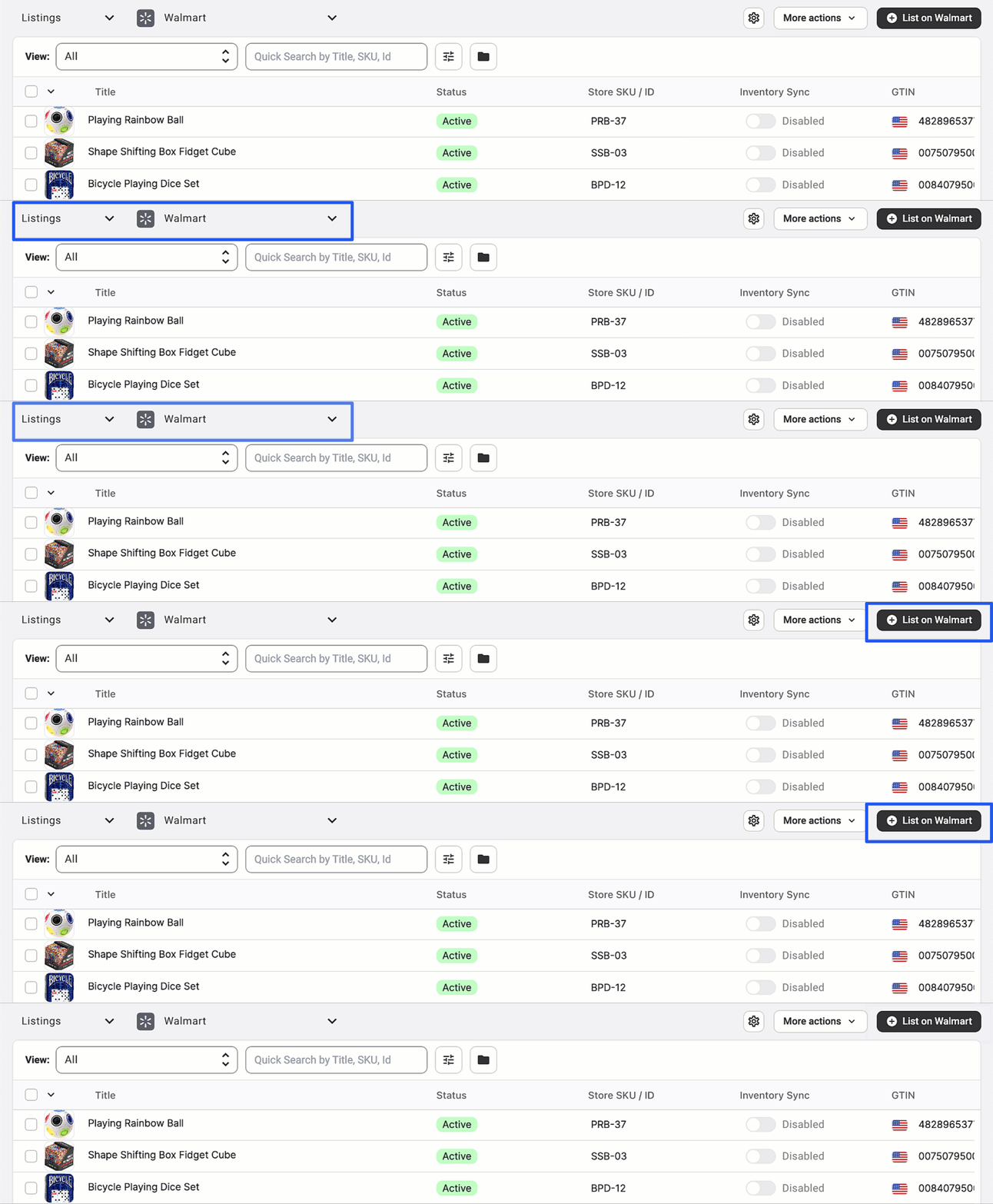
Currently, listing creation is available only for Walmart US. Support for additional marketplaces, such as Canada, Mexico, and Chile, is coming soon.


Step 2. Define key product settings
To list items on Walmart Marketplace, you’ll need to configure a few essential settings. They determine how your products are presented, updated, and identified on the channel.
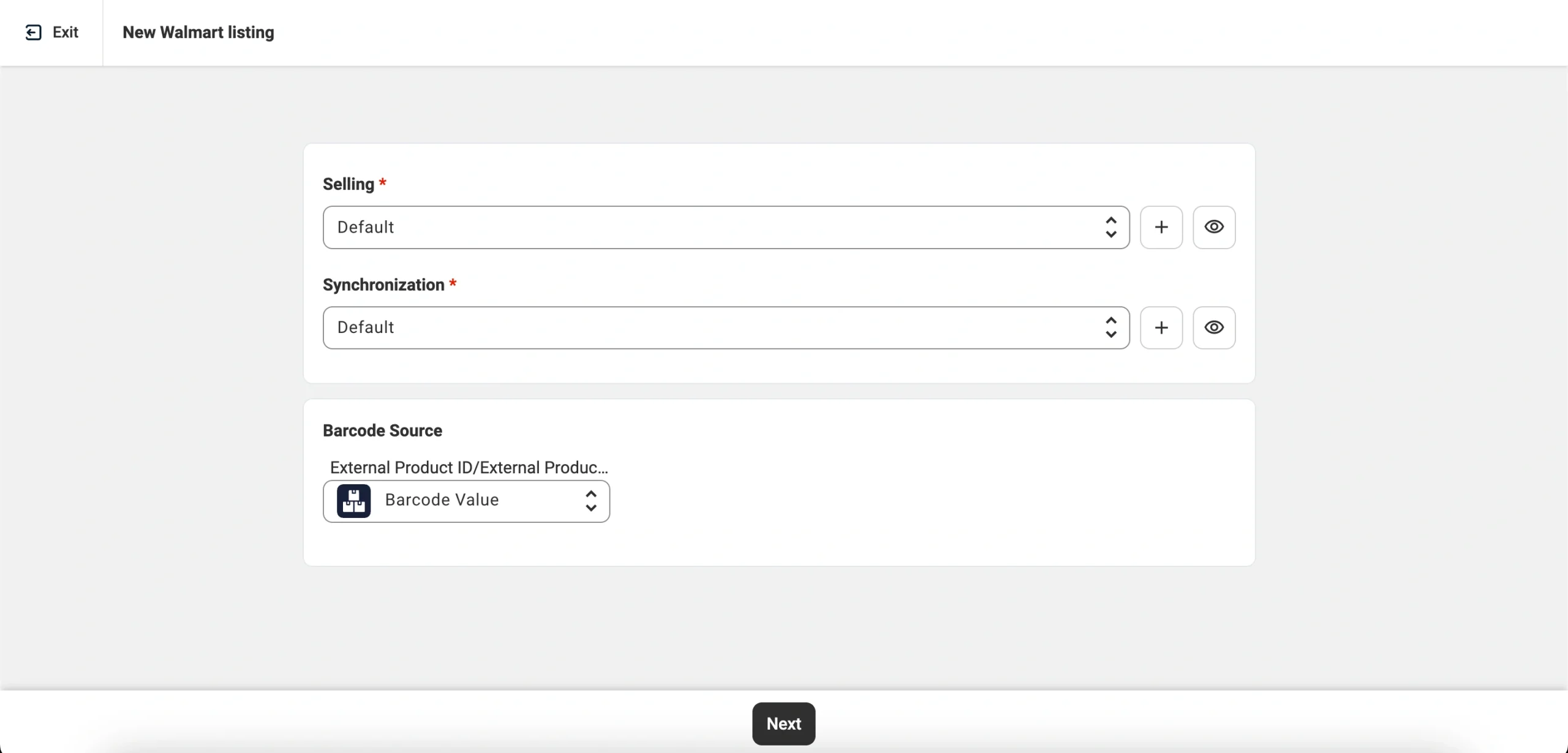
Start by setting up your Policies:
- Selling Policy – Sets your pricing and quantity rules, along with other essential listing parameters.
- Synchronization Policy – Manages how your product data and inventory stay aligned between your store and Walmart.
Next, define the Barcode Source. It specifies where the product identifier (GTIN, UPC, etc.) should be pulled from. By default, M2E Multichannel Connect uses the barcode from your store’s product data. However, you can choose a different store attribute containing a valid identifier, or manually enter the value.
You can list products without barcodes if Walmart has approved a GTIN/UPC exemption for the specific Product Type. You’ll need to request this exemption in your Walmart Seller Center. Once approved, you can enable the exemption in M2E. See step 5 of this guide for details.
Important: Walmart requires valid product identifiers to match your items with its internal catalog and improve search visibility. If you submit listings without barcodes or with incorrect values, Walmart will reject them. That’s why you need to make sure each product has a valid GTIN/UPC or an approved exemption.
Once these settings are in place, click Next.
Step 3. Select items to list on Walmart
At this step, you’ll see a list of products from your store that haven’t yet been listed on Walmart. You can choose which ones to list next, including both Simple and Variational products.
Use the Quick Search field to locate items by title, SKU, ID, price, or quantity. To refine your selection further, apply filters based on listing status, stock levels, categories, or product attributes from your store.

Tip: We recommend listing products in batches, grouped by category or type. This makes it easier to apply consistent settings, such as pricing, quantity rules, or product attributes.
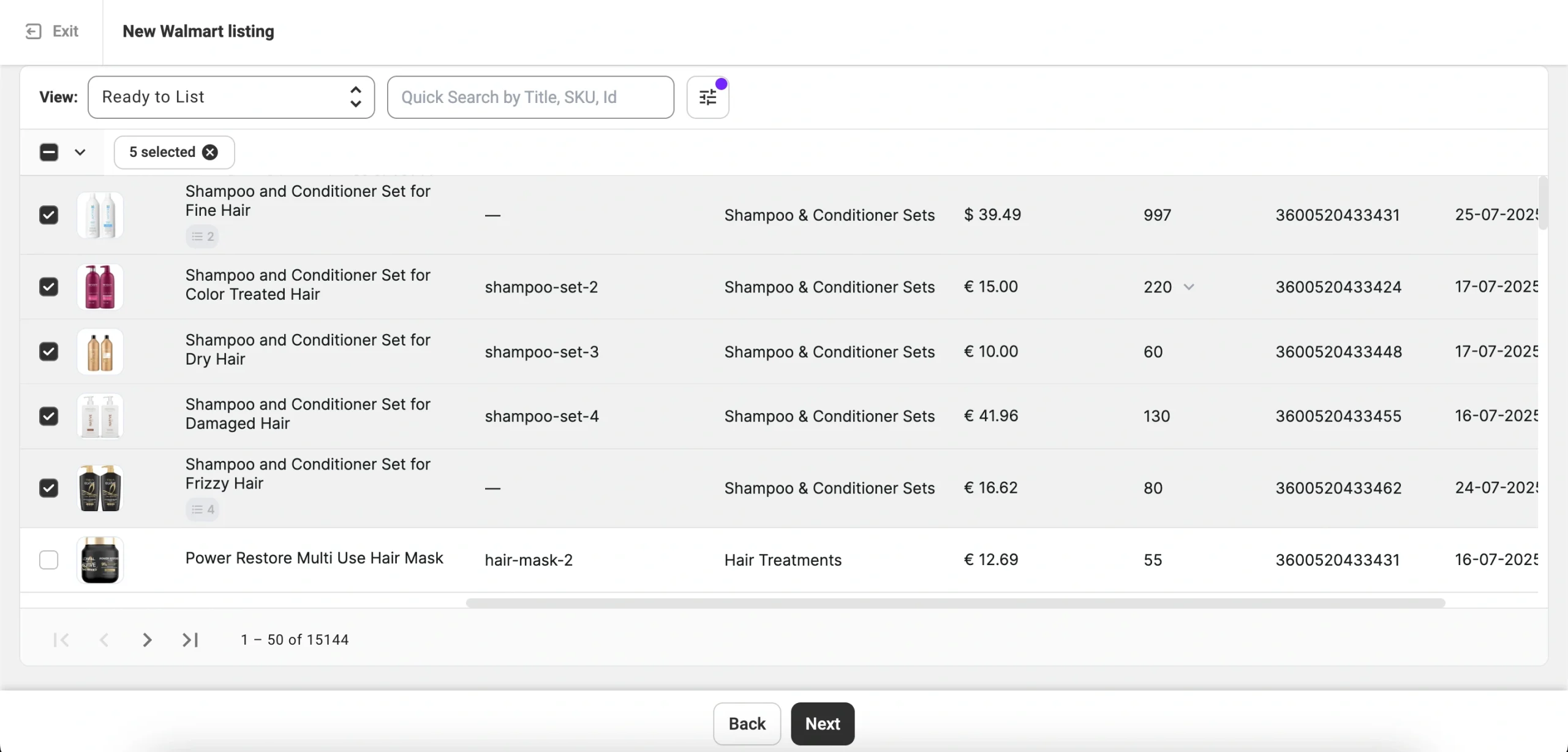
Tick the checkboxes next to the products you want to list. Once your selection is complete, click Next.
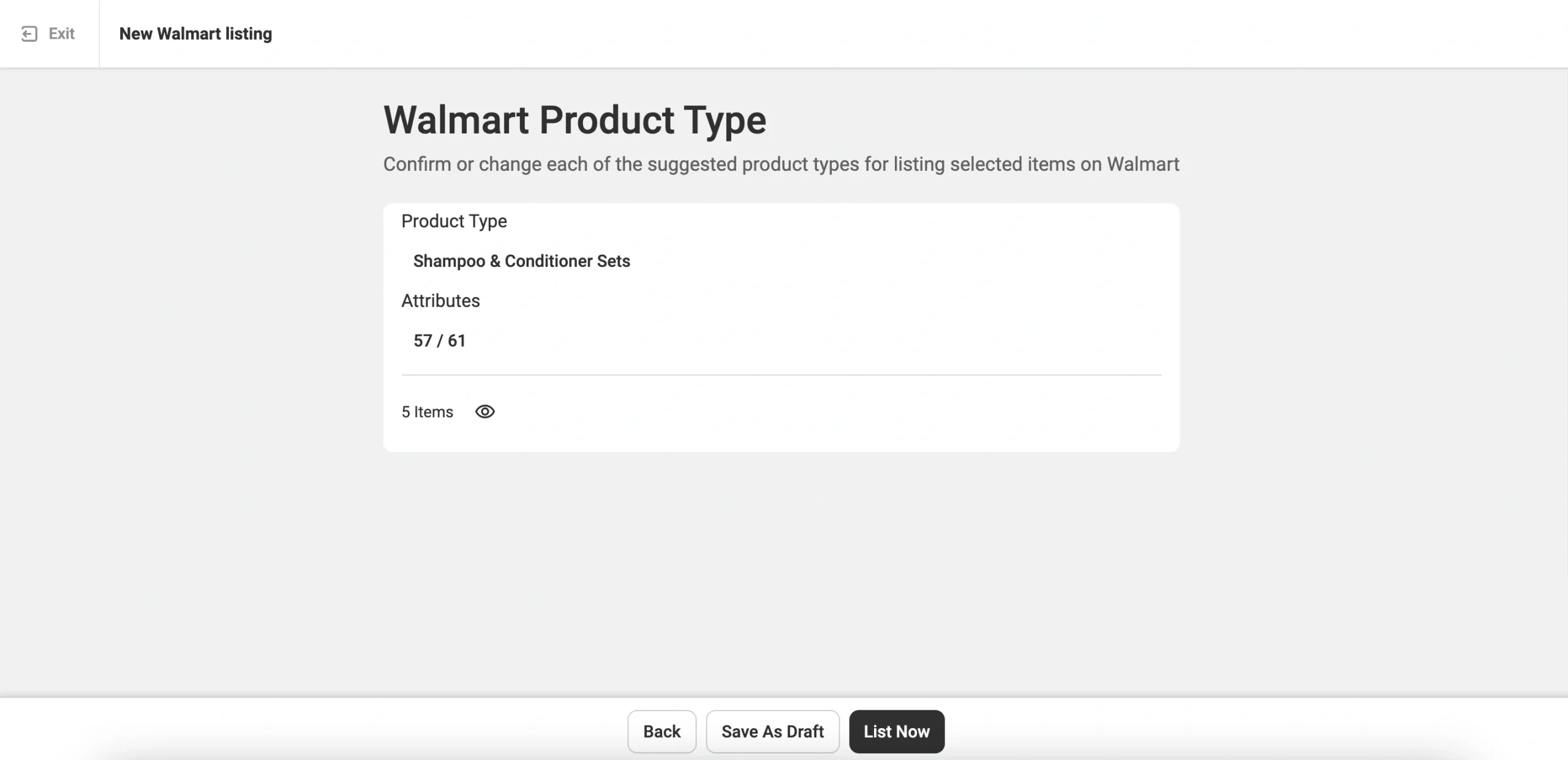
Step 4. Choose a Walmart Product Type
At this step, you’ll need to assign a Walmart Product Type to the selected items. M2E will suggest a suitable type based on your catalog data. You can either confirm the suggestion or select one manually using Walmart’s Product Type name or ID.
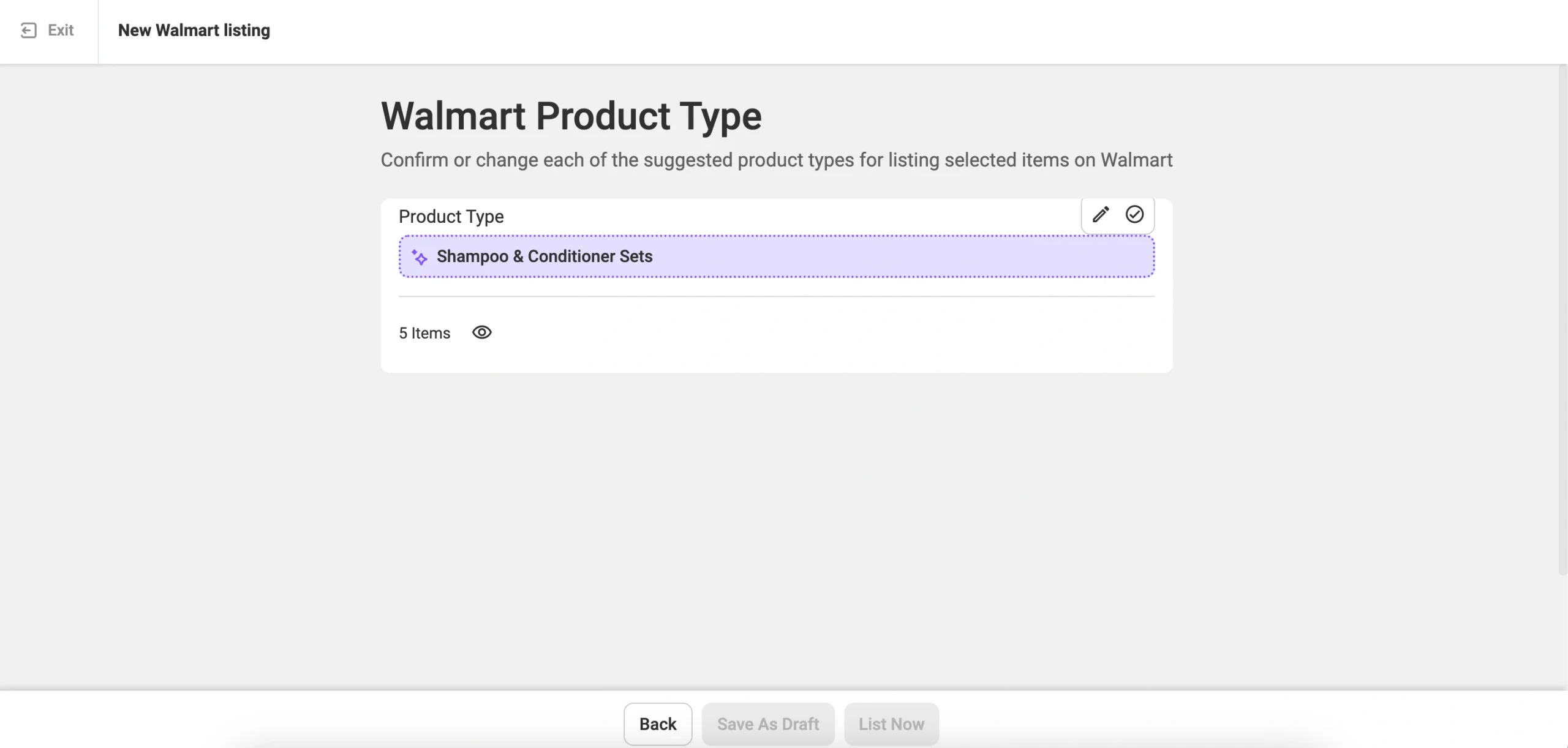
Choosing the correct Product Type is essential. It affects which attributes will be required in the next step, as well as how your product is categorized on Walmart.com.
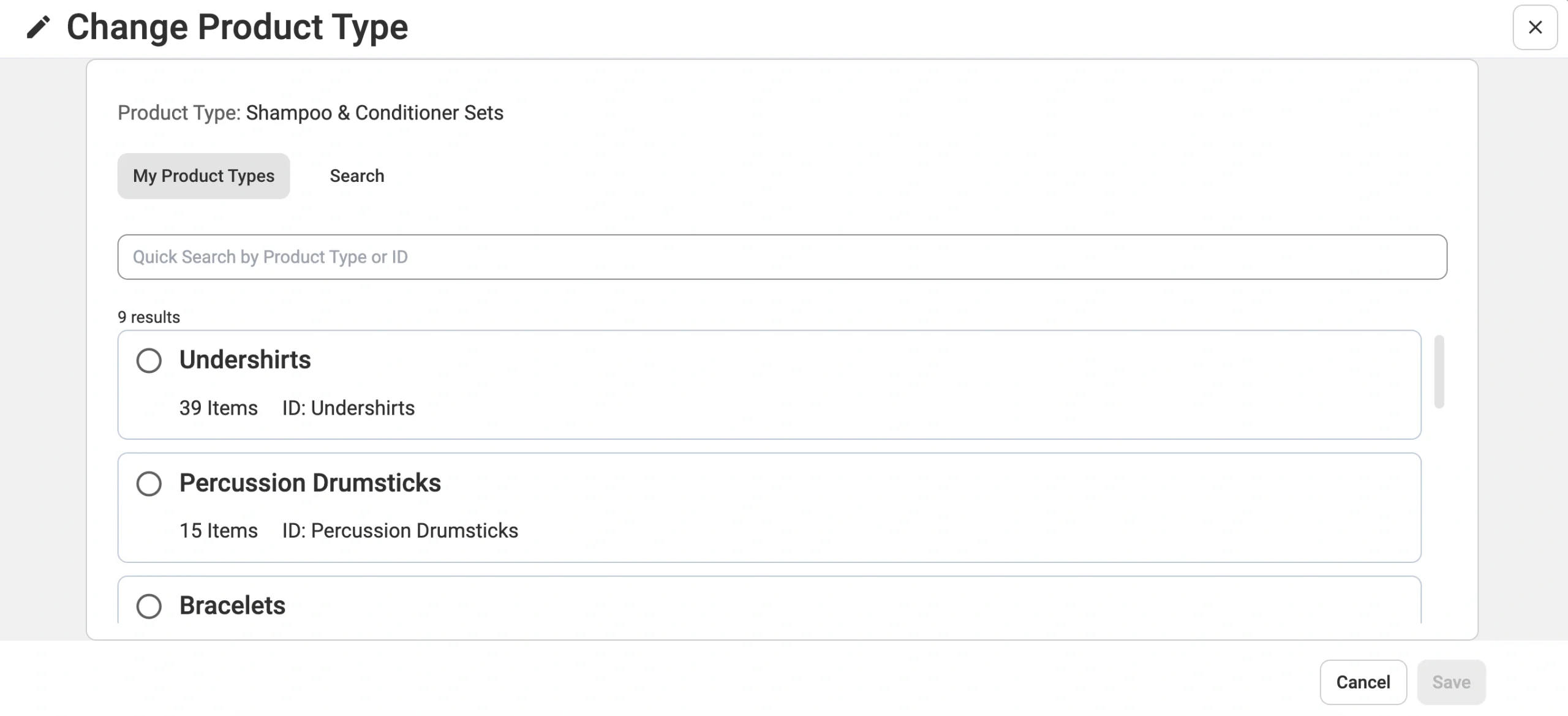
Note that listings are created under Walmart’s root categories. Specific subcategories are assigned automatically by Walmart based on the selected Product Type and attribute data.
Step 5. Set product attributes
After selecting the appropriate Product Type, you need to define the required and recommended product attributes. This step ensures your listings meet Walmart’s standards and appear in relevant customer searches.
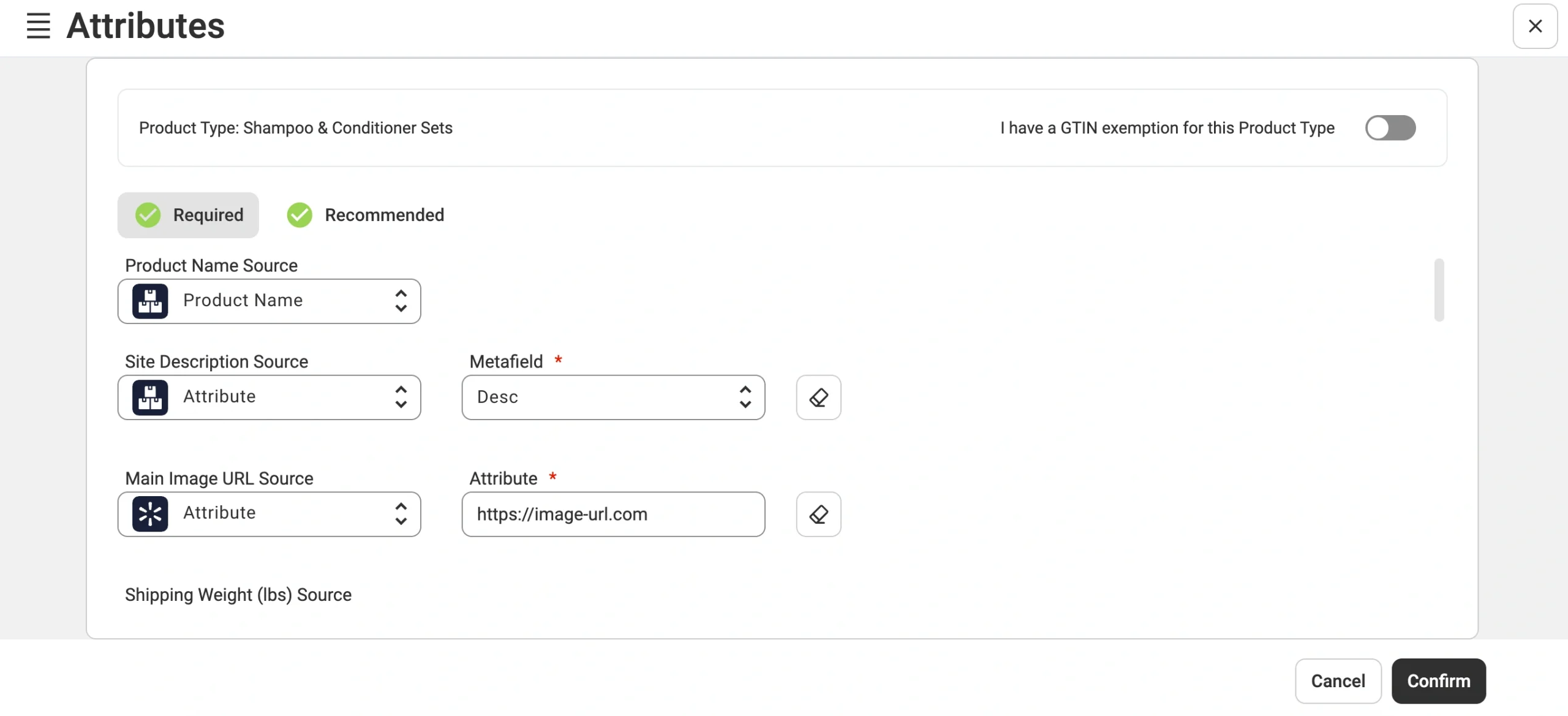
You have three options for providing attribute values:
- Use predefined attributes from your e-commerce store. This is the default and fastest approach.
- Map a specific attribute or metafield. This is the go-to option if your data is stored in custom fields.
- Enter a custom value into the attribute field. In some cases, you can choose from the pre-defined Walmart values.
For more detailed product data, Walmart supports multi-container attributes. They allow you to specify components like fabric blends (e.g., 60% cotton, 40% polyester) or multi-material packaging. Including these details can improve your visibility in filtered search results, as many Walmart shoppers use specific criteria when browsing.

If you have a GTIN/UPC exemption for certain products, you can activate the relevant toggle in the attribute settings. This way, you can list items without standard product identifiers for approved categories.
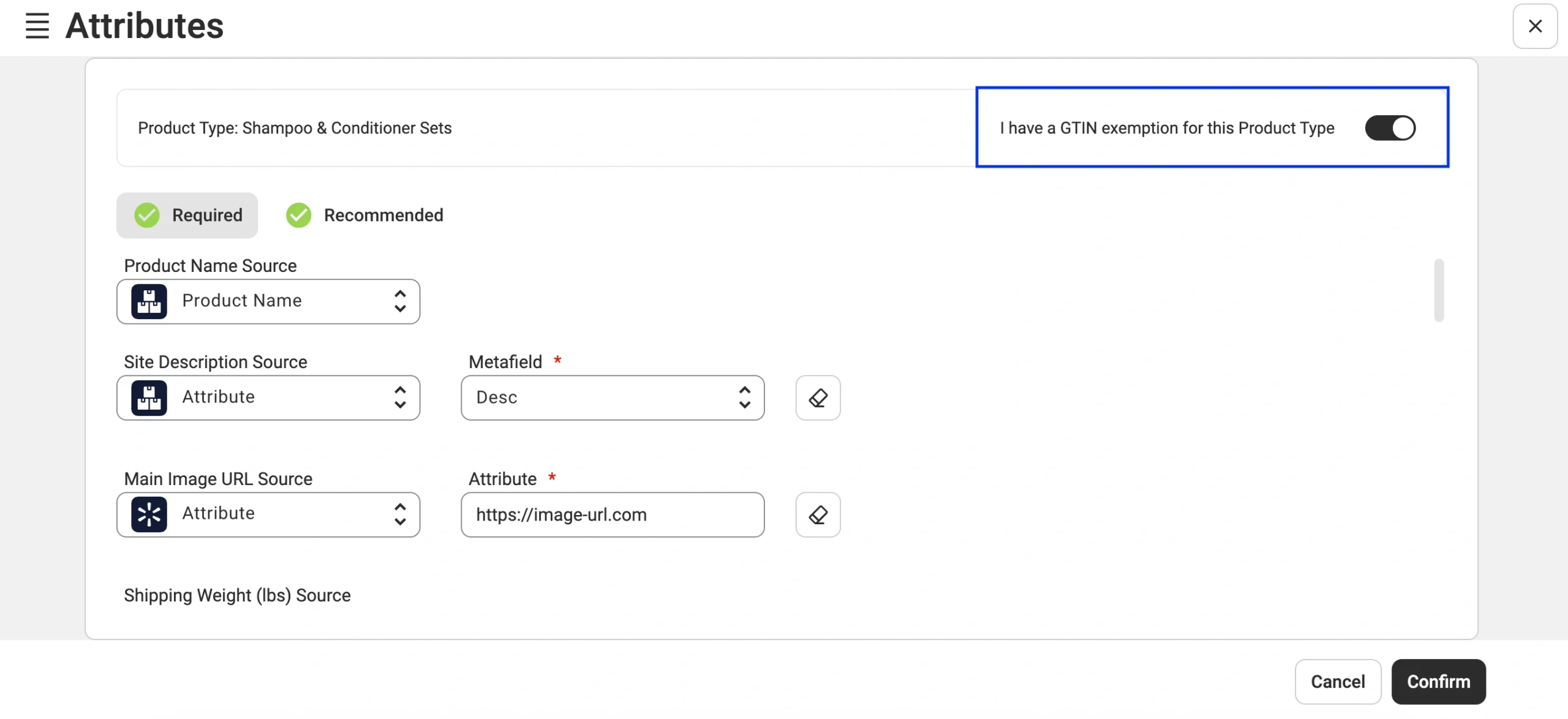
If you’re listing variational products, M2E will automatically try to map your store’s variant attributes (such as Size, Color, or Style) to the corresponding Walmart fields. With this mapping, each variant of your Walmart marketplace items will be displayed correctly.
If the products in your store use custom or non-standard variation names, M2E will prompt you with a pop-up to manually match them to the right Walmart attributes.
Step 6. Submit the listing
Once your listings are complete, including selected items, Policies, Product Type, and attributes, it’s time to publish them on Walmart. You have two options:
- Click List Now to submit your products to Walmart for review and publication.
- Or choose Save as Draft to hold off and publish them later, once you’re ready.
A few important notes:
- Listings saved as Draft will remain inactive until you manually submit them.
- Products marked as Draft or Hidden in your store will not appear on Walmart.
- If an item failed Walmart’s validation checks or was previously saved as a draft, you should manually resubmit it via Manage Items > List in M2E.

Your journey doesn’t end with listing. Once your products are live, it’s time to monitor, evaluate, and refine. With tools like M2E Sales Analytics, you can track key performance indicators across your Walmart catalog. See which items drive sales, which underperform, and where there’s room to improve. Use this information to adjust pricing, optimize inventory levels, and make informed decisions that strengthen your Walmart strategy.

How to view or delete your listings on Walmart
Once your items have been submitted, you might be wondering: How to view my list on Walmart?
You can track the status of your Walmart listings in two places:
- In M2E Multichannel Connect, where real-time sync and status updates are available.
- In your Walmart Seller Center, under the Items tab, where you’ll find all published, pending, and retired listings.
And if you’re searching for how to delete list on Walmart app, here’s the clarification: Walmart doesn’t support permanent deletion through the app. Instead, retiring a listing is the standard and recommended approach.
To remove a product from public view, go to the Listings tab in M2E Multichannel Connect. Select your Walmart account, and then tick the boxes next to the active products you want to retire. Click Manage Items > Stop from the top menu.
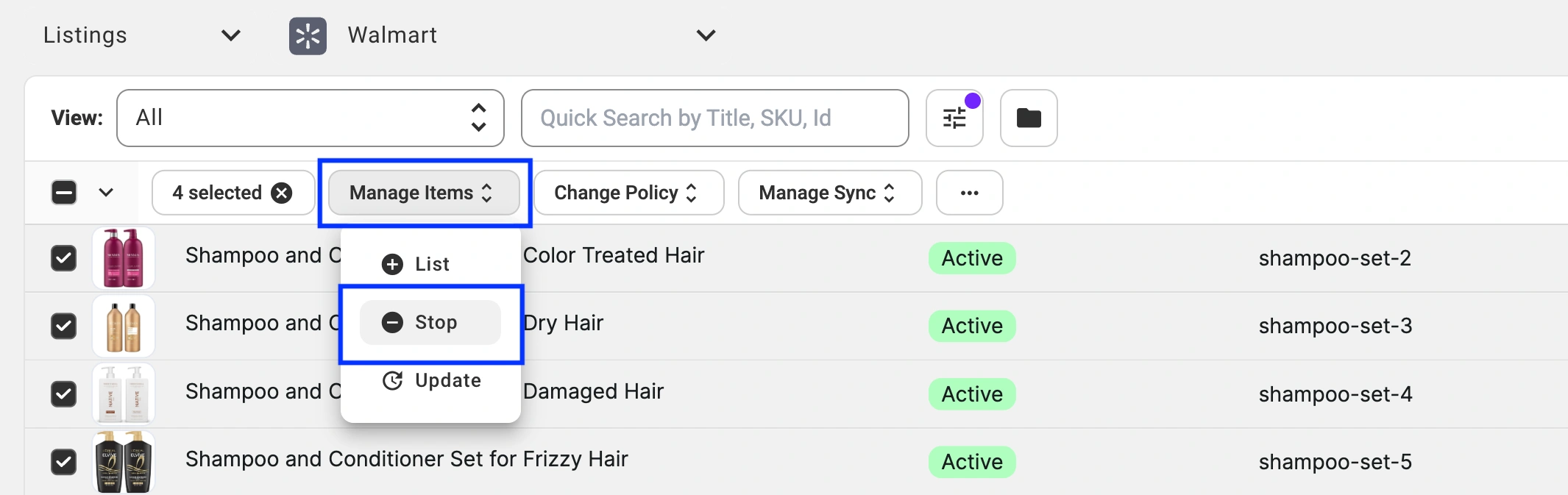
This action hides the item from buyers but keeps your listing data intact. You won’t have to start from scratch if you decide to relist the product later.
Final thoughts
Learning how to list on Walmart Marketplace doesn’t need to be complex. With M2E Multichannel Connect, you gain the structure, automation, and flexibility to build a presence that scales, without getting lost in the details.
Walmart brings the shoppers. M2E gives you the tools. All that’s left is to step in and start.