


Thinking about selling on Amazon in Poland? Whether you’re wondering about fulfillment options, or ready to tap into Amazon’s growing presence in Central Europe, this guide has you covered. From setting up your Seller Central account to listing products, handling VAT, and choosing FBA or self-fulfillment, we break down every step. Let’s dive into how to start selling on Amazon.pl, and how to make it work for your business.
What Should You Know About Amazon.pl
Amazon.pl (sellercentral.amazon.pl) officially launched on March 2, 2021 – a relatively recent addition to the Amazon ecosystem. Since then, it’s been steadily attracting more and more sellers.
If you are thinking about starting your own store at Amazon.pl it’s a great time. Thus, now you can launch on Amazon.pl and pay no subscription or referral fees for six months. Save 995 PLN (excl. VAT) and access a growing Polish customer base.

According to Globaleyez.net since its debut in the Polish market, Amazon.pl has steadily established its place in the country’s eCommerce sector.
As of December 2023, the platform attracted 14.2 million monthly visitors. While this is significantly lower than Allegro’s 196 million and OLX.pl’s 97.6 million, Amazon.pl still managed to capture 22.69% of Poland’s internet audience. For comparison, Allegro commands 65.22% of the market, Temu, a newer entrant, holds 45.91%, and AliExpress stands at 29.06%.
Amazon.pl also generated $357 million in global net sales in 2023.
The marketplace now offers over 400 million products, with electronics currently ranking as the top-selling category.
Listing Your Products
Once your Amazon Poland seller account is up and running, it’s time to list your products and start reaching customers. Amazon offers two main methods for creating listings: manual listing for individual items and bulk upload for large inventories. Here’s how each method works.
Remember that you can sell a lot of products on Amazon, read more about this in our blogs:
- How to Sell Plants on Amazon
- How to Sell New Musical Instruments on Amazon
- How to Sell Books on Amazon
- How To Sell Tea on Amazon
List with M2E Cloud
Amazon provides sellers with built-in tools to list products, whether you’re adding a single item or uploading multiple products via file.
However, if you’re aiming for scalability, automation, and full control over your operations, it’s worth considering a third-party solution like M2E Cloud.
With M2E, your product data, including prices, stock levels, descriptions, and images, is automatically synced between your eCommerce platform (such as Magento or Shopify) and Amazon.
No need to manually monitor inventory: when an item sells on one platform, the stock is updated everywhere in real time.
You can view and manage all Amazon orders directly within your CMS or inside the M2E app, no need to switch between systems.
M2E also simplifies bulk listing creation using your product feed. It supports intelligent mapping to existing Amazon listings (ASIN/ISBN) to avoid duplication and unnecessary SKU creation. And when you do need a new SKU, M2E’s Amazon SKU generator can handle it for you automatically.
Whether you’re using FBA or fulfilling orders yourself (FBM), M2E has you covered. Plus, with built-in support for Amazon MCF, you can ship products sold on other platforms or marketplaces using Amazon’s fulfillment network.
With eCommerce Amazon integration by M2E Cloud, managing your Amazon Poland store becomes effortless. This is a great way if you have a store at Shopify, BigCommerce, WooCommerce, Ecwid, Shopware and Salesforce.

Track shipments, update order statuses, and stay organized across channels. Plus, boost your profits with automated repricing that helps you win the Buy Box or follow your custom pricing strategy across 19+ Amazon marketplaces.
Read about how to list simple products on Amazon in our guide.
Still, if you are selling with Magento (Adobe Commerce) you can try M2E Pro Amazon Magento extension.

Also, you can boost your Amazon sales with M2E Repricer, the smartest, fully automated tool for effortless price optimization across B2C and B2B markets.

Add a Product (Manual Listing)
Ideal for sellers with just a few items to list, the “Add a Product” tool lets you search, match, or create listings directly within Seller Central.
Match an existing product
If the item you’re selling already exists in Amazon’s catalogue:
- Go to Inventory > Add a Product;
- Search by product name, UPC, EAN, ISBN, or another external ID;
- Click “Sell yours” next to the matching product;
- Add key offer details: SKU, price, quantity, condition, and delivery;
- Click “Save and Finish”;
Double-check that the product is an exact match, mistakes can lead to customer complaints and negative feedback.
Create a new product listing
For your own-brand or unique products not found in the catalogue:
- Click “Create a new product listing”;
- Choose the appropriate product category;
- Fill in the required fields (marked with a red asterisk);
- Use Advanced View to access all data tabs;
- Upload product images, add bullet points, and enter search keywords;
Add product variations
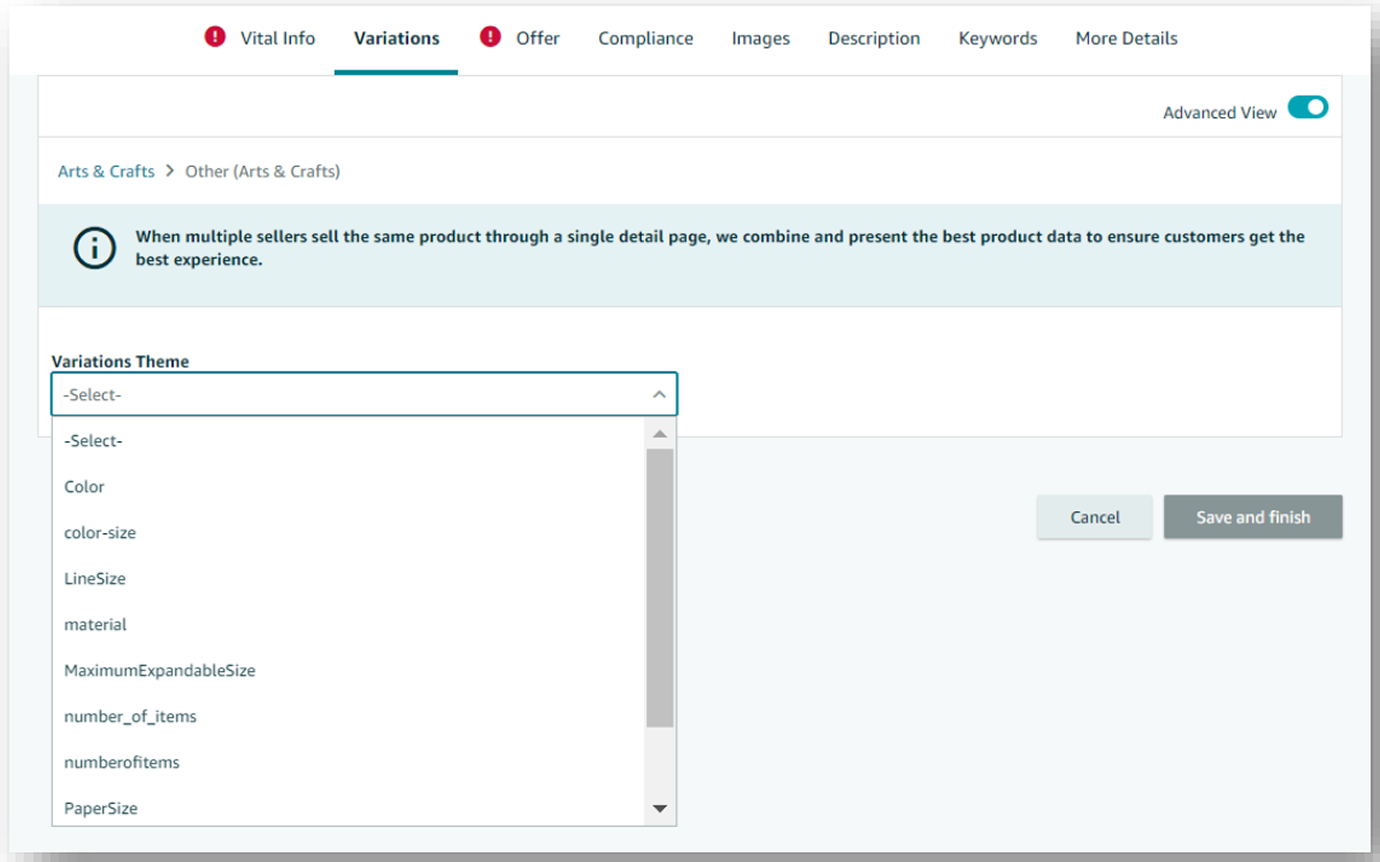
Selling items in multiple sizes or colors? Use the Variation Theme feature.
Example: A t-shirt in 4 sizes (S, M, L, XL):
> The t-shirt is the parent product, and each size is a child.
> Add SKUs, stock levels, and images for each variation.

For color variations, make sure to upload a separate image for each option.
Learn more How to List Variational Products on Amazon.
Add Products via Upload (Bulk Listing)
If you’re managing a large inventory or migrating from another system, Amazon lets you upload product data in bulk.
Upload your own product file
- Prepare your spreadsheet with columns like: title, description, size, color, image URL, etc;
- Save it in Excel, CSV, or TXT format;
- Go to Inventory > Add Products via Upload > Upload your Inventory File;
- Track progress under Monitor Upload Status;
Use Amazon’s inventory template
- Go to Download an Inventory File;
- Select your product categories;
- Choose the marketplaces you’re listing on;
- Pick “Advanced” for full attribute fields or “Custom” to select only what you need;
- Upload the completed file under Upload your Inventory File;
Check How to Increase Product Visibility on Amazon.
Products Requiring Approval
Some products and categories on Amazon.pl require prior approval. These include restricted or regulated items (e.g., cosmetics, supplements, electronics).
Read more about How to Sell Restricted Products on Amazon in our guide.
To check:
- Try listing the item;
- If approval is required, click “Request Approval” and follow the instructions;
- Upload any required documentation, documents in Polish are accepted;
GTIN Exemption for Products Without Barcodes
To list products on Amazon, you usually need a barcode (UPC, EAN, JAN, or ISBN). If your item doesn’t have one, you can apply for a GTIN exemption.
How to apply:
- Use the GTIN Exemption Form in Seller Central;
- Submit supporting documents (e.g., product photos with branding);
- Check the status in Your Cases and Requests Log;
You can request an exemption for generic or own-brand products. For own-brands, you’ll need a signed statement confirming GTIN absence.

Amazon Brand Registry
Own a registered trademark? Enroll in Amazon Brand Registry to:
- Protect your intellectual property;
- Gain control over product content;
- Access enhanced brand content tools;
- Report and manage listing violations more efficiently;
Brand Registry also enables access to A+ Content, which lets you create rich, conversion-boosting product pages.
Account Settings Configuration
After registration, setting up your account preferences correctly is crucial for smooth operations on Amazon Poland. This includes configuring your payment details, VAT info, shipping policies, and more. All these settings can be found under the “Settings” menu in the top-right corner of your Seller Central dashboard.

Add Your Bank Account
To receive payouts from Amazon, you must provide valid bank account details (not a credit card or PayPal). Amazon transfers your sales earnings every 14 days, minus fees and commissions.
To add or update:
- Go to Settings > Account Info > Payment Information > Bank Account Information;
- Add a local bank account for each EU marketplace you plan to sell on;
- Remember: disbursements are made only in the local currency of the bank’s location;
Example: If your bank is in Poland, payments will be made in PLN only.
Enter VAT (NIP) Details and Enable Invoicing
VAT identification number – value-added tax or NIP (pl.) – numer identyfikacji podatkowej.
Remember, you can sell without VAT (NIP) only until you reach a certain threshold (in Poland, it’s approximately 200,000 PLN in annual turnover). After that, VAT registration becomes mandatory.
If you are VAT (NIP)-registered, configure your tax settings:
- Go to Settings > Account Info > VAT/GST Number;
- Add your VAT numbers for each country where applicable;
- Set up free automatic VAT invoicing under VAT Calculation Settings;
Amazon will then issue invoices on your behalf, available to both you and your buyers.
Customize Your Storefront
Under Business Information, you can:
- Edit your store name, logo, and customer service details;
- Tailor these settings per individual EU marketplace;
A professional-looking storefront increases trust and helps build your brand.
International VAT (NIP) Setup
If you sell or store goods in other EU countries, you may need to register for VAT in those markets. This depends on your annual sales volume in each country.
Amazon supports international sellers through the VAT Calculation Service (VCS) – a free feature that:
- Automatically adds VAT to your prices when required;
- Issues compliant invoices to your buyers;
- Stores and shares these documents with customers via your account;
Benefits of VCS:
- Automated VAT invoices: Amazon generates invoices based on the buyer’s country and your tax status, including all required details (VAT ID, rates, etc.).
- Accurate VAT rates: Amazon applies the correct rate depending on product type and buyer location. You don’t need to track VAT rate changes manually.
- Professionalism & trust: Especially important for B2B buyers who expect official tax documents.
- Easy access to documents: Download all invoices in a file for your accountant or records.
How to enable VCS:
- Be VAT-registered in at least one EU country;
- Add your VAT number(s) in Seller Central > VAT/GST Number;
- Go to VAT Calculation Settings and enable the service;
- Select the countries and VAT rates you want to apply (or let Amazon handle it);
Return Settings
Also found under Shipping and Returns Information, this section lets you define how you’ll handle returns:
- Domestic returns: Customers pay for return shipping unless the item is defective or misdescribed
- International returns: You’re responsible for the cost, and can choose to:
- Refund without asking for the return;
- Provide a prepaid return label;
- Offer a local return address in the country of sale;
Still, if you consider Why is Your Product Not Selling on Amazon, check out our blog.
Amazon FBA
Managing your own logistics can be time-consuming and costly, especially when selling across Europe. With Fulfilment by Amazon (FBA), you can outsource the entire process. Amazon stores your inventory, handles packing and shipping, manages returns, and provides customer service in the buyer’s local language.
Amazon fulfillment in Poland allows sellers to store, pack, and ship products directly through Amazon’s trusted FBA network. The expansion of the Amazon Poland warehouse network is helping streamline cross-border sales and boost delivery speed across Europe.
Meanwhile remember that Amazon offers additional FBA Storage Options with Benefits in select EU countries.
Let’s walk through how to start using FBA on Amazon Poland.
Converting Listings to FBA
You can choose to let Amazon fulfill your products either during listing creation or afterward.
- During listing creation. When adding a new product, simply select “Amazon will dispatch and provide customer service” as the fulfilment channel. No minimum quantity or setup fee, just fulfillment and storage fees based on usage.
- For existing listings. Already listed products? Go to Inventory > Manage Inventory, select the item, and click Edit > Convert to Fulfilled by Amazon. You’ll now find this product under Manage FBA Inventory.
Creating an FBA Shipment
Before sending inventory to Amazon’s fulfilment centres, you’ll need to create a shipment plan.
Step 1: Choose inventory to send
- Go to Manage FBA Inventory > select product > Send/Replenish Inventory;
- Set your “Ship from” address and destination marketplace;
- Add the quantity and packaging type (individual SKUs or bulk identical units);
- Ensure each product is barcoded properly;
- Click Confirm and Continue;
Step 2: Confirm delivery
- Confirm SKU quantities;
- Choose the delivery method (small parcels or pallets) and set a delivery date;
- Follow Amazon’s guidance for labelling and logistics;
Step 3: Print labels
- Print and attach shipping labels to each package;
- Ensure label accuracy, incorrect labels can delay or reject deliveries;
Step 4 (if shipping pallets): Confirm carrier info
- Choose a carrier and confirm pallet dimensions and details;
Learn more about Amazon pallets requirements.
Step 5: Track shipment
- Go to the Shipping Queue to monitor the progress;
- A status of “Closed” means your delivery has been accepted at the fulfilment centre;
Find more about 2025 Amazon FBA & Referral Fee Updates.
FBA Inventory Removal
Need to withdraw or dispose of stock from Amazon’s warehouses? You can submit a removal order through Seller Central. Removal fees apply per unit, whether you’re returning products to yourself or requesting disposal.
FBA in Europe: Cross-Border Fulfilment Programs
- European Fulfilment Network (EFN). Store inventory in your home country, and let Amazon ship across EU marketplaces. You’ll pay standard FBA fees for local orders and EFN fees for cross-border fulfillment.
- Multi-Country Inventory (MCI). Distribute your inventory across multiple fulfilment centres in different EU countries. This reduces delivery times, qualifies listings for Prime, and cuts shipping costs for local deliveries.
- Pan-European FBA (PAN-EU). With PAN-EU, you send inventory to a single location, and Amazon redistributes it across Europe as needed. This enables faster delivery and no cross-border FBA fees. Currently available in Germany, France, Italy, Spain, Poland, and Czech Republic (excludes UK).
Amazon for merchants is a powerful platform that helps businesses of all sizes reach new customers, streamline operations, and scale their eCommerce sales across local and international markets.
FAQs
How are sales processed on Amazon Poland?
Sales on Amazon Poland are processed in Polish złoty (PLN), with buyers paying in the local currency. If your bank account is in PLN, Amazon transfers the funds directly without conversion.
How is the value in Euros converted to PLN?
If your account is in another currency (e.g. EUR), Amazon uses its Currency Converter for Sellers (ACCS) to convert PLN to your payout currency at a competitive exchange rate that includes a small margin. The converted amount is then deposited into your account during the regular 14-day payout cycle.
Does Amazon deliver to Poland?
Yes, Amazon delivers to Poland, and with Amazon.pl, local shoppers enjoy faster and more affordable shipping options. Meanwhile, Amazon delivery in Poland is getting faster thanks to local logistics and growing fulfillment capacity.
Conclusion
So, are you ready to grow your sales on Amazon in Poland? With the right setup, a smart fulfillment strategy, and tools like M2E Cloud to automate your listings, orders, and pricing, success is just a few clicks away.
Whether you’re new to Amazon or expanding from another EU marketplace, Amazon.pl offers a fast-growing audience and full support for sellers. Now’s the time to take your store live and let Amazon and M2E do the heavy lifting.
For more information about eCommerce tips and insights about Amazon check out our blog.
