


In today’s fast-paced e-commerce landscape, staying ahead means expanding to platforms where customers actively shop and engage. If you’re a Shopify seller, tapping into TikTok Shop isn’t just an option—it’s a golden opportunity to reach a massive, highly engaged audience. But here’s the catch: manually moving product data from Shopify to TikTok Shop can be a frustrating, time-consuming task.
Fortunately, M2E Multichannel Connect makes this process effortless. Using the M2E TikTok Shopify integration, you can quickly import products from your Shopify store and ensure they meet TikTok Shop’s requirements. Our comprehensive guide will walk you through every step.

Reasons to Use M2E Cloud for TikTok Shopify Import
Here’s why M2E Multichannel Connect is the go-to solution to sell on TikTok with Shopify:
- Bulk import for efficiency
Manually adding each product to TikTok Shop can take hours, if not days. M2E Multichannel Connect allows you to bulk import your Shopify inventory, transferring either all products or only selected ones in just a few clicks. Forget about unnecessary manual work and speed up listing your items on TikTok Shop.
- Accurate and consistent product data
With M2E Multichannel Connect, you can be confident that product information is transferred with precision. The app extracts key product details, such as titles, descriptions, images, etc., directly from your Shopify store so that your TikTok Shop listings reflect accurate and up-to-date information.
- Live data synchronization
E-commerce moves fast, and outdated listings can mean lost sales. With real-time synchronization, M2E Multichannel Connect automatically updates your TikTok Shop listings whenever you make changes in Shopify, be it price updates or stock adjustments.
- Centralized order management
Apart from synchronizing inventory, M2E Multichannel Connect also syncs your TikTok Shop orders with Shopify. Once a customer makes a purchase on TikTok Shop, the app creates a corresponding order in your Shopify store. Enjoy a streamlined order workflow by managing shipments and tracking order statuses from your Shopify dashboard.
- Optimization of products for TikTok Shop
Using M2E Multichannel Connect, you can tailor your Shopify products specifically for TikTok Shop. Use product metafields directly from Shopify, create custom attributes, or set flexible pricing and quantity rules instead of relying on default settings. This way, you can create better-organized, marketplace-compliant listings that stand out and gain more visibility.
- Seamless multichannel integration
Beyond Shopify and TikTok Shop, M2E Multichannel Connect integrates with multiple marketplaces, including Amazon, eBay, Walmart, Kaufland, and more channels coming in 2025. This makes it an excellent solution for merchants looking to expand across different platforms while managing everything from one centralized system.

Step-by-Step Guide to Import Products from Shopify to TikTok Shop
Step 1. Install M2E Multichannel Connect
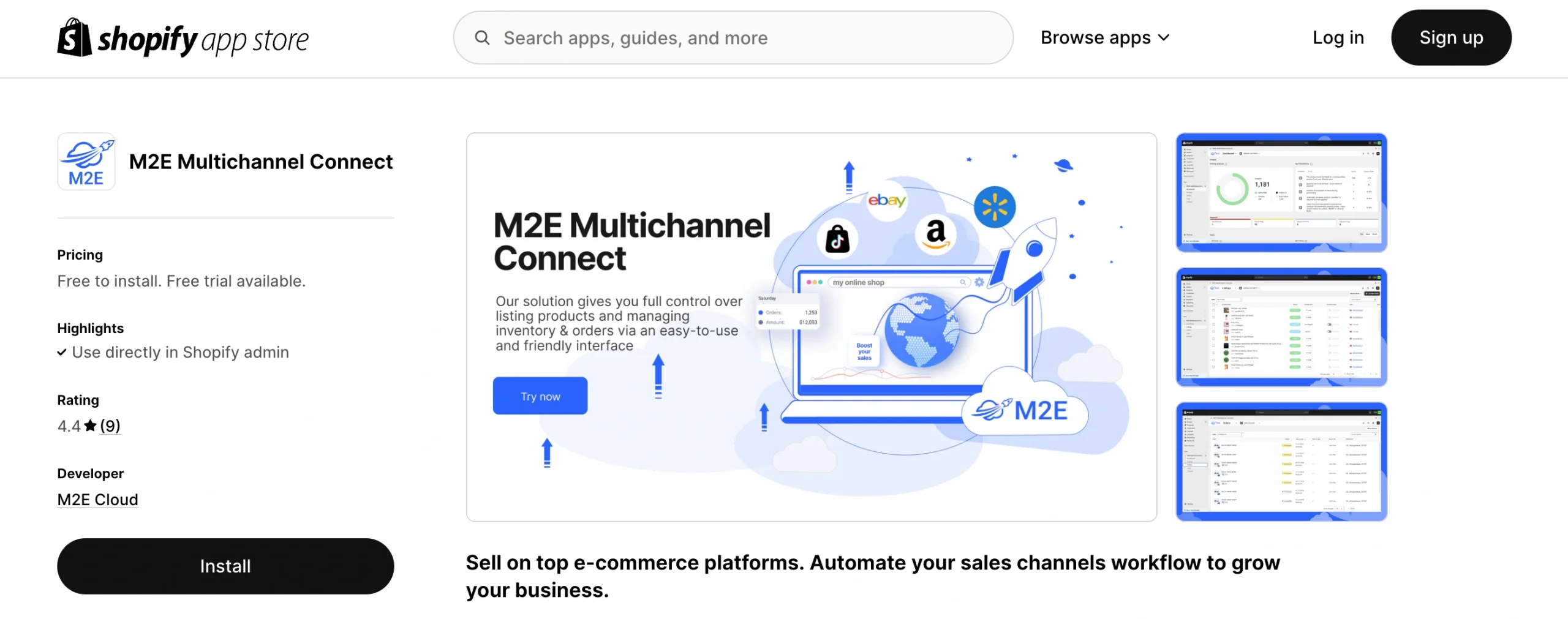
Log in to your Shopify admin panel and install the M2E Multichannel Connect app from the Shopify App Store. Once installed, follow the setup instructions to connect your TikTok Shop seller account. Enjoy a 30-day trial before selecting a subscription plan that suits your business needs.
Step 2. Access TikTok Shop items
Once your accounts are linked, M2E Multichannel Connect will automatically fetch product data from Shopify and TikTok Shop (if available). However, you will need to manually select and list the Shopify items you want to import to TikTok Shop in order to have full control over your listings.
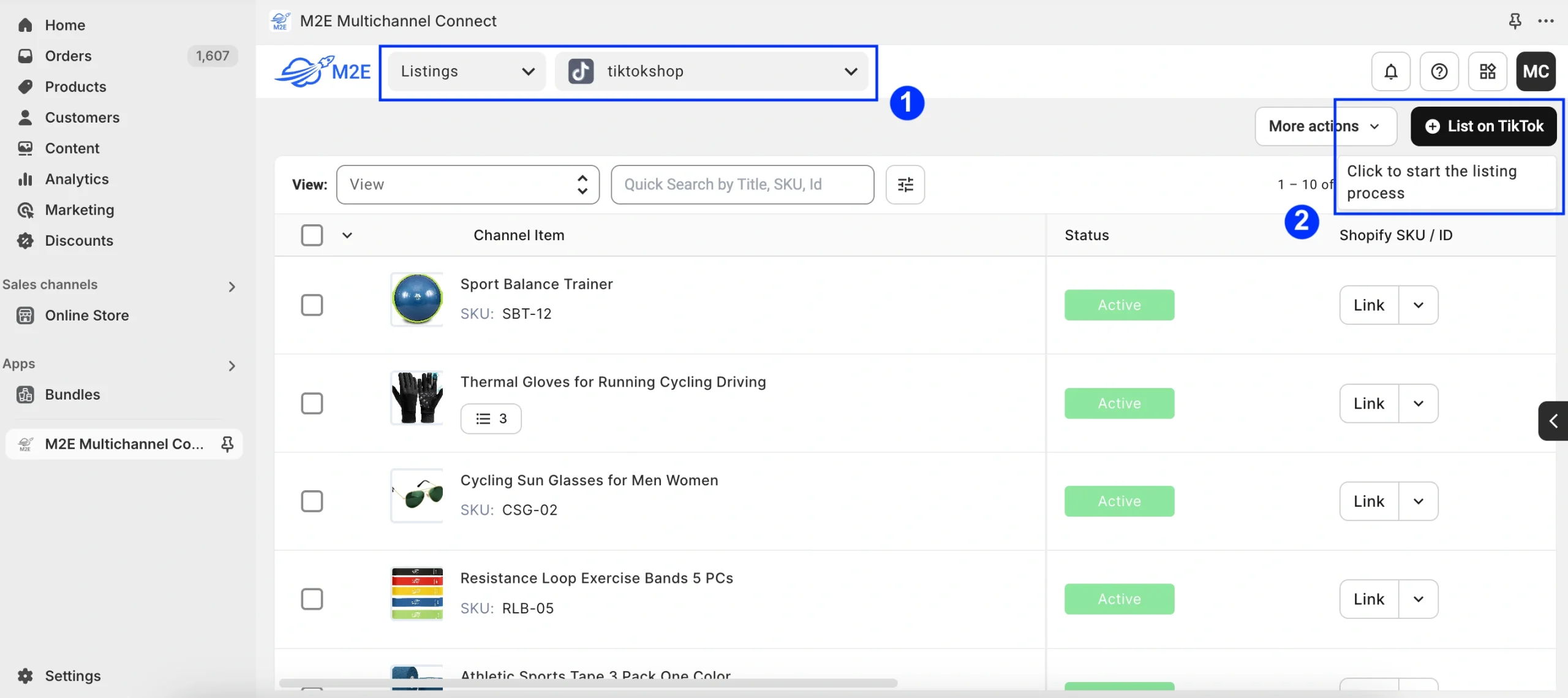
To begin the import process, navigate to the Listings tab, select your TikTok Shop account, and click List on TikTok in the top right corner.
Step 3. Select a TikTok Shop
Choose the TikTok Shop account where you want to list your products. TikTok Shop supports multiple regions, including the US, UK, and European markets, depending on your account registration.

Step 4. Define product settings
Set up essential product Policies. These are templates with settings that dictate how your products are priced, updated, and synchronized between Shopify and TikTok Shop.
By defining clear policies, you gain full control over your listings, prevent pricing errors and inventory mismatches:

- Selling Policy: Configure pricing, quantity, and package dimensions for smooth product import.
- Synchronization Policy: Define how inventory and data updates will be managed between Shopify and TikTok Shop. If you sell on TikTok Shop Europe, you can also enable the synchronization of GPSR details.
Important: Ensure package dimensions (height, width, length, and weight) are set correctly in Selling Policy. Missing dimensions will cause import failures.
Step 5. Select products to import
Use the Quick Search field and advanced filters to find and select the Simple and/or Variational items you want to import. Search by title, SKU, Shopify metafields, or collections to streamline the selection process.

Key requirements for TikTok Shop listings
When selecting your Shopify products for import, please check that they meet the primary TikTok Shop regulations:
- Image restrictions
- File Format: JPEG (.jpg) and PNG (.png) only.
- File Size: Max 5MB per image.
- Resolution: Between 600×600 and 6000×6000 pixels.
- Image Limit: Up to 9 images per product, with a max of 3 images per variant.
- Content Guidelines: The first image must feature the product against a white background with no text, icons, or watermarks.
- Listing restrictions
New sellers are limited to 100 listings per day during the shop probation period. To successfully complete this period:
- Prioritize listing high-performing or best-selling products.
- Follow TikTok’s listing policies and fulfill orders promptly.
- Monitor your account performance to check when restrictions are lifted.
- Category restrictions
Mind that some of the products are restricted from being sold on TikTok Shop or may require additional approval. For more information, please refer to the article.
Once you’ve selected the items for import and confirmed that they comply with TikTok Shop requirements, click Next.
Step 6. Set the TikTok Shop Category & Attributes
Assign relevant product categories and attributes to improve visibility on TikTok Shop.
The app uses an auto-suggestion system that analyzes which Shopify collection a product belongs to and attempts to find the most relevant category in TikTok Shop’s category tree. As a result, in most cases, you won’t need to manually select a category, as the app will provide a suitable match automatically.
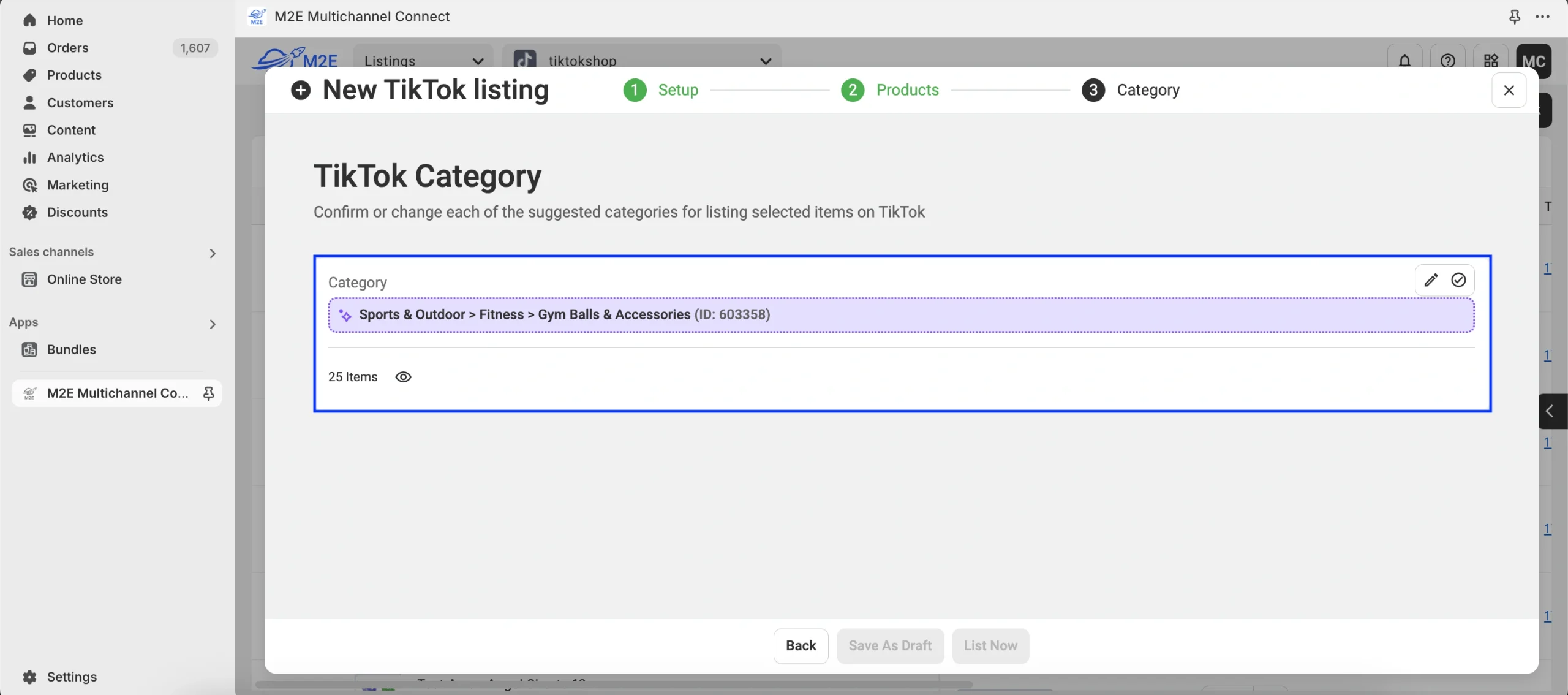
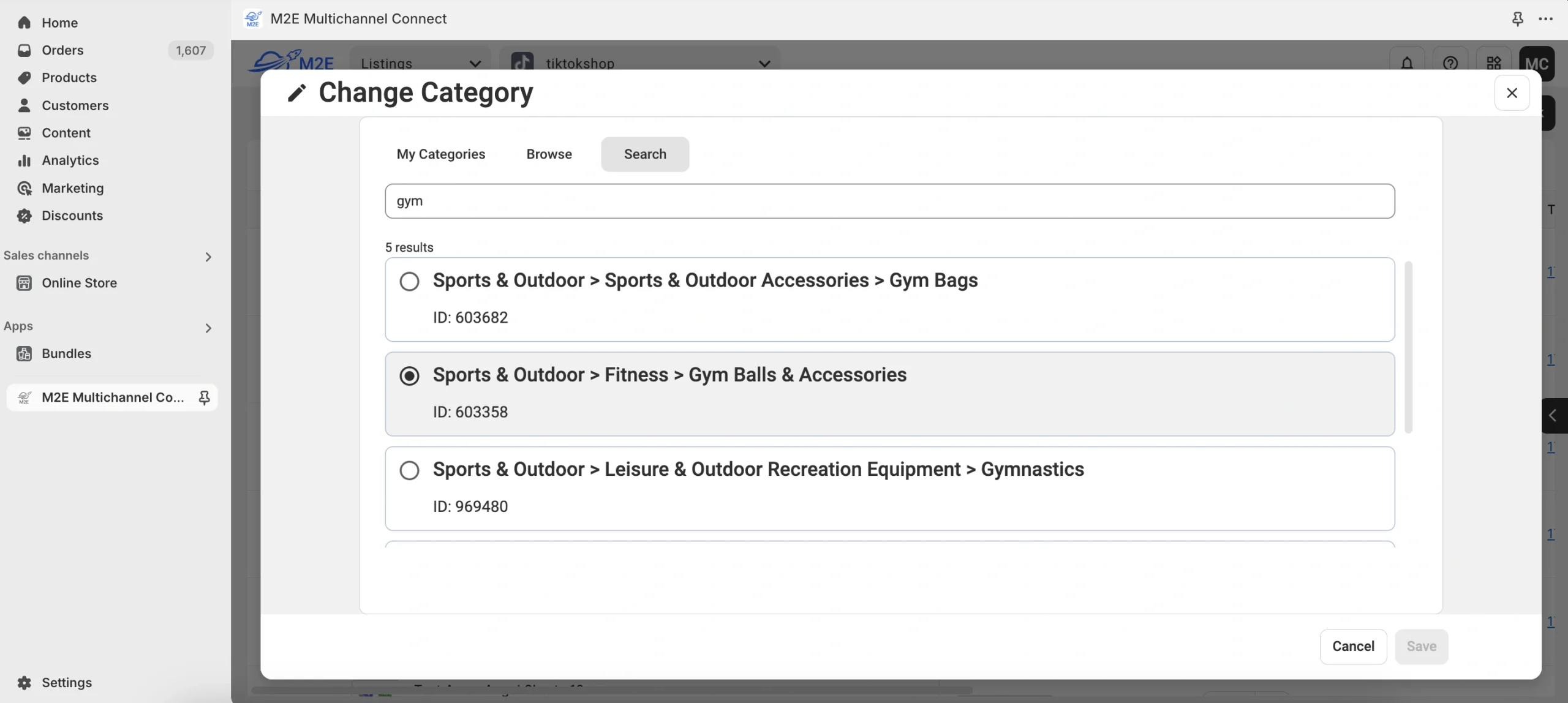
You can confirm an automatically suggested category or manually browse for a better fit.
Also, you will need to set required and recommended attributes to provide shoppers with thorough information about your items. M2E Multichannel Connect provides flexibility in this process. You can choose attributes from the predefined list suggested by TikTok Shop or use existing Shopify metafields if this data is available in your store. Alternatively, you can create a custom attribute within the app to match the product requirements.

Once done, click Confirm.
Step 7. Publish your products on TikTok Shop
As soon as everything is set, click List Now to submit your items for TikTok Shop approval. If you’re not ready to publish, use Save as Draft to store your listings and publish them later with a single click.

Important: Draft listings remain inactive until manually published. Products marked as ‘Draft’ for import will not be sent to TikTok Shop. Additionally, any product in ‘Draft’ or ‘Hidden’ status in Shopify will not be visible on TikTok Shop.
If items remain inactive due to TikTok Shop validation issues or because they were stored as Drafts and are now ready to be listed, they will not be published automatically. To make these products available for sale, you need to manually submit them to TikTok Shop. For that, select the needed items and click List from the mass actions menu.
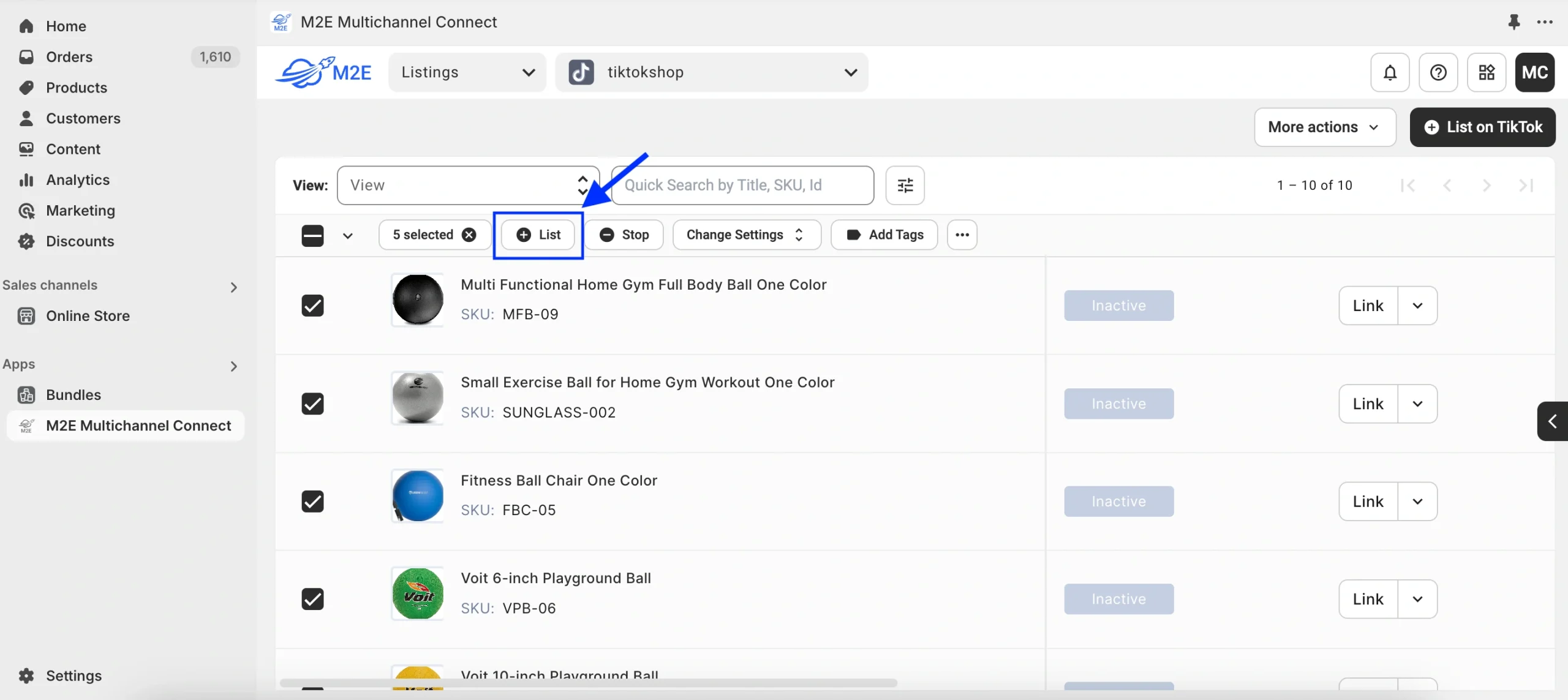
Once your items are sent to TikTok Shop, some may not be listed right away due to missing or incorrect details. The app will alert you to any issues and guide you through resolving them. Check out the common TikTok Shop listing errors and how to fix them.
Conclusion
If you’re looking to scale your Shopify business and break into TikTok channel, M2E Cloud is your ultimate companion. It eliminates manual hassle, ensures accuracy, and provides powerful tools to manage inventory, pricing, and orders—all while keeping your listings perfectly synchronized.
Should you have any questions or run into any issues, our M2E Cloud support team is here to help. You can also explore our comprehensive user manuals and video tutorials for extra assistance.

