


Selling on eBay is usually a simple process – you list a single item, and with any luck, it sells. But what happens when you have several units of the same product or items that come in various sizes or colors?
If you’ve ever wondered how to do a multi-quantity listing on eBay, this guide is here to help. We’ll break down everything you need to know about listing multiple items on eBay, whether as variations or multi-quantity listings. You’ll learn what these listings are, how to create them using M2E Cloud, why they can boost your eBay sales, and some useful tips for making the most of this feature.

Multi-quantity vs. Variational listings on eBay
Multi-quantity listings allow sellers to list multiple units of the same product in a single listing. Buyers can choose to purchase one or more units, and the listing remains active as long as there is stock available. This is particularly useful for fixed-price listings, where you can add multiple identical items to a single entry instead of creating separate listings for each unit.

On the other hand, variation listings are designed for products that come in different options, such as color, size, or style. With variation listings, you can group all the versions of a product into a single listing, allowing buyers to select their preferred option without having to browse through multiple entries. While variation listings are most commonly associated with fashion items, they’re just as effective for other product categories.

Overall, the key differences are:
- Multi-quantity listings are for identical products, where the buyer only selects the quantity they want to purchase. These listings have one inventory count for all units.
- Variation listings allow buyers to choose both the quantity and a specific option (e.g., color, size). Each variation has its own separate inventory count.
Why create multi-quantity/variational eBay listings
Let’s explore the benefits of both listing types and how they can elevate your eBay selling strategy:
- Improves search ranking. Both listing types build a strong sales history, improving visibility in eBay’s search results.
- Enhances buyer convenience. Buyers can purchase multiple units in one transaction or select their preferred options without navigating through separate listings.
- Simplifies inventory management. Managing stock becomes much easier with these listing types. Instead of juggling multiple listings for similar products, you can update quantities or variations in a single place.
- Offers cost savings. eBay allows you to add variants to a listing without extra fees, making it cheaper to offer multiple options (e.g., sizes or colors) in one listing instead of creating separate offers for each variant.
- Reduces administrative effort. Both listing types keep your entries organized and active as long as there is stock. You can forget the hassle of relisting or creating new offers for the same product.
- Maximizes sales potential. Combining units or variations into a single listing helps sellers attract more buyers, streamline product visibility, and increase the chances of multiple purchases from the same listing.
How to create an eBay multi-quantity listing using M2E Cloud
With M2E Cloud, you can sell products from your e-commerce platform or catalog as multi-quantity or variational listings on eBay. The following steps will guide you through the process.
Step 1. Access eBay items
Go to the Listings tab in the M2E Multichannel Connect app. Select your eBay account from the list, then click the List on eBay button located in the top-right corner of the grid to start creating your eBay listings.

Step 2. Select a marketplace
Choose the eBay marketplace where you want to create your listing. This step ensures your products will be listed in the correct region and visible to the appropriate audience.

Step 3. Define item policies & quantity settings
Configure the necessary M2E Policies for your items based on the information from your store to ensure they meet eBay’s listing and selling requirements. Settings in Policies define how the selected products will be sold and managed between your store and eBay.

Let’s focus on the Selling Policy as it plays a crucial role in managing quantity settings for your eBay listings. The following settings apply both for multi-quantity and variational items.
When creating a Selling Policy, make sure to select the Fixed Price listing format instead of the Auction one. eBay doesn’t allow multi-quantity listings for auctions.

In the Quantity section of the Selling Policy, you can set the quantity that will be displayed for your product on eBay. By default, M2E Multichannel Connect submits the quantity available in your store or catalog.
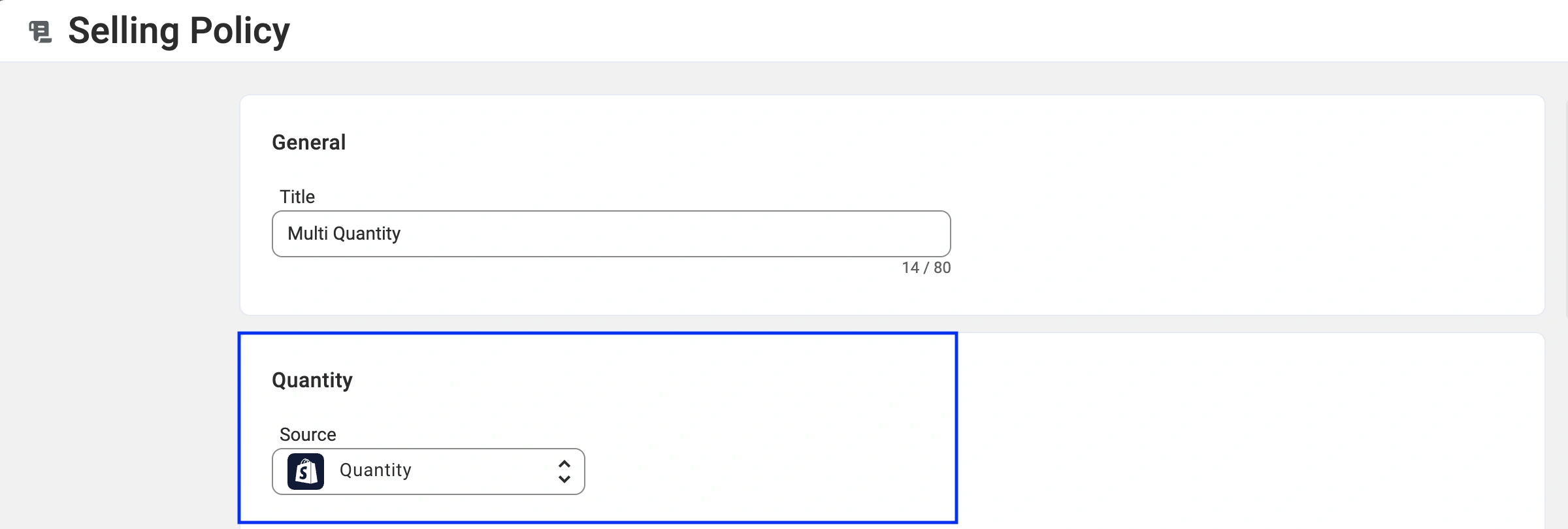
M2E Multichannel Connect offers several options for how you can change the default item quantity submitted to eBay and tailor listings to fit your inventory strategy:
Sell part of the store stock on eBay
If you prefer to list only a portion of your store’s stock on eBay, follow these steps:
- Click Add Quantity Modification in the Quantity section.
- In the Reserve field, enter the quantity you want to submit to eBay.
For example, If you have 100 units of an item in stock in your store and set a reserve quantity of 10, the available quantity displayed on eBay will be 90.

Enable zero stock selling (backorders)
The Keep on Channel option allows you to display a lower quantity on eBay than what’s actually available in your store. By showing a reduced stock level, you can create a sense of urgency and encourage buyers to purchase sooner.
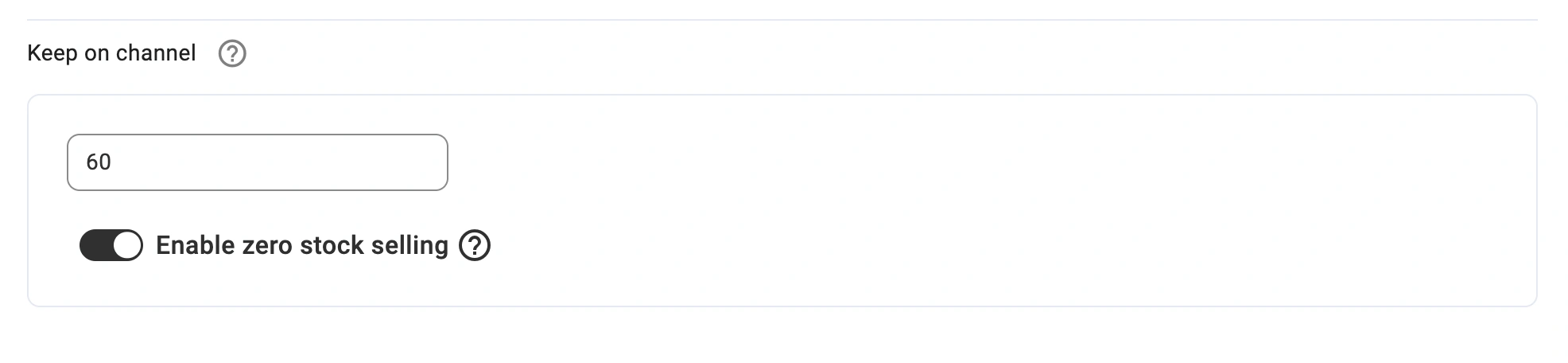
You can also enable Zero Stock Selling, which keeps your listing active even when your actual store inventory reaches zero. When this option is turned on, the specified Keep on Channel quantity will continue to be sent to eBay, letting you accept backorders.
Sell in lots with eBay Lot Size feature
eBay allows sellers to offer items in lots, meaning multiple identical or similar items sold together as a pack. This is useful for bulk sales or when you want to clear inventory faster.
To enable this option:
- Turn on Sell in Lots (Packs) in the Selling Policy settings.
- Specify the number of items included in each lot.
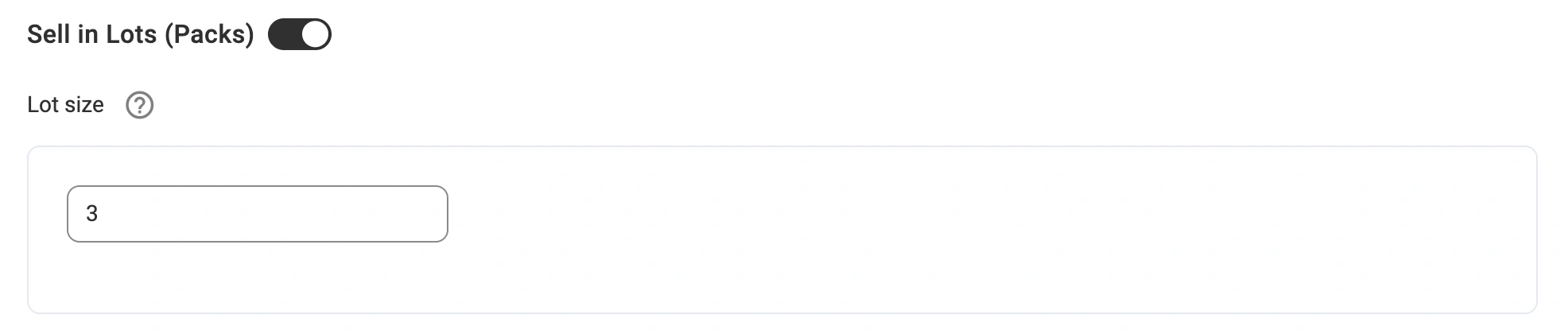
Example:
- If your available quantity is 100 and you set the Lot Size to 3, the item quantity displayed on eBay will be 33 (since 100 ÷ 3 = 33).
- Buyers will see that the item is only available in packs of three, with a total of 33 lots available for purchase.
This approach helps attract bulk buyers while making it clear how the product is sold.
Step 4. Select products to list
For Multi-Quantity Listings
Choose the multi-quantity items from your store or catalog that you want to list on eBay. Use the Quick Search field or the Groups section on the right to filter products by category and quickly find what you need. Once you’ve selected the items, click Next to proceed.

For Variational Listings
Choose the items with variations (color, size, width, material, etc.) from your store or catalog that you want to list on eBay. Use the Quick Search field or the Groups section on the right to filter products by category and quickly find what you need.
Click View/Manage Item Variants to verify that the selected item includes all necessary variations and their details.

eBay’s requirements for Variational listings
To ensure your multi-variation items meet eBay’s guidelines, keep the following rules in mind:
- Each listing can include up to 5 variation types (e.g., color, size, width, material, style).
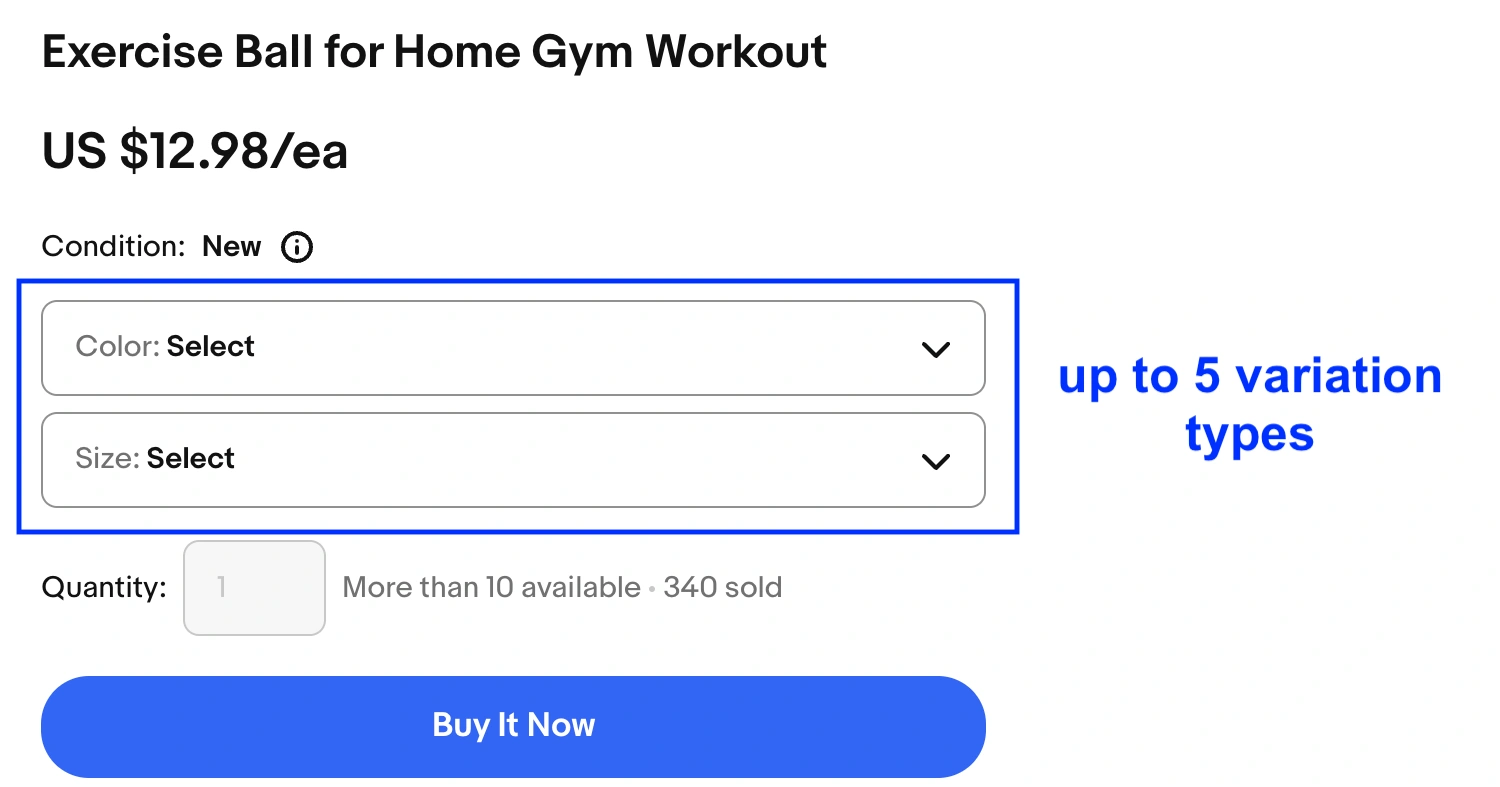
- Each variation type can have up to 50 distinct values (e.g., 50 colors, 50 sizes, etc.).

- You can have up to 250 total variations in a single listing without additional fees.

Example: If you’re selling shoes, your 5 variation types could be:
- Color: (Red, Blue, Black, etc.)
- Size: (US 7, US 8, US 9, etc.)
- Width: (Narrow, Regular, Wide)
- Material: (Leather, Suede, Canvas)
- Style: (Sneakers, Boots, Loafers)
Each of these variation attributes can have up to 50 options, allowing for a highly flexible and organized listing on eBay.
Each variation in your listing can have a different price and quantity, so be sure to set these values correctly in your Selling Policy (step 4). This way, buyers will see the right price for each option, and you will prevent inventory mismatches.
Once you’ve selected your variational items, click Next to proceed.
Step 5. Set the eBay category & item specifics
To list your multi-quantity/variational items on eBay, you must assign a Primary Category.
If the app suggests a relevant eBay category, you can confirm it immediately or change it if needed.

When changing the category, you can select a previously used category or manually find one using the Browse and Search tabs. Once chosen, save your selection.
Before confirming your category choice, ensure it supports variational listings if applicable. You can check the full list of supported categories here.

Also, you have the option to enhance your listing’s exposure by setting additional eBay categories:
- eBay Secondary Catalog Category – Click Add Additional Category to include it. Keep in mind that eBay charges an insertion fee for this feature.
- eBay Store Categories – Available only to sellers with an eBay Store subscription, allowing better organization and discoverability within your store.
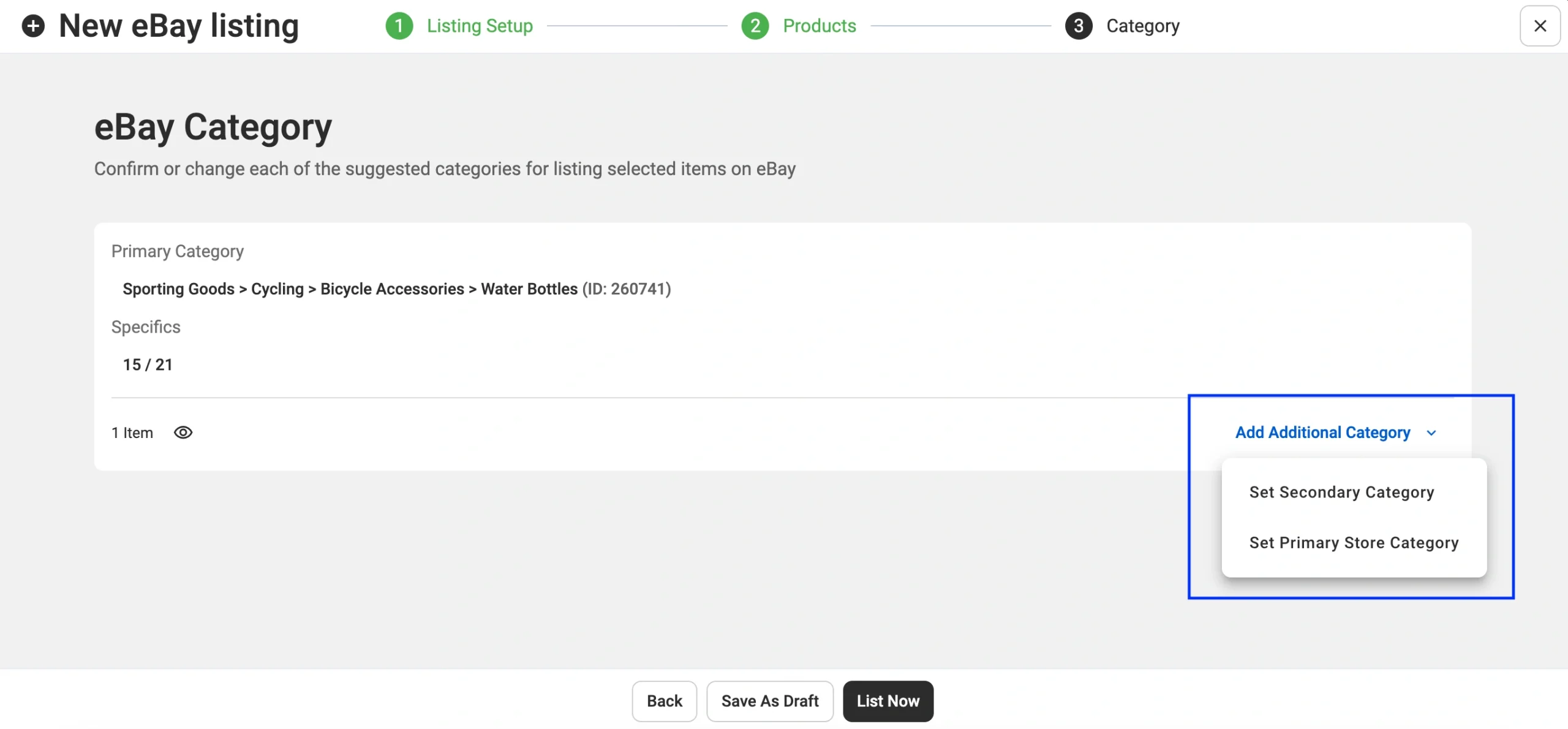
Once your eBay category is set, you need to fill in item specifics, which help improve search ranking and visibility:
- Custom specifics – Optional fields where you can add extra product details.
- Required specifics – Essential details that must be provided to list the item.
- Recommended specifics – Suggested attributes that enhance listing performance.
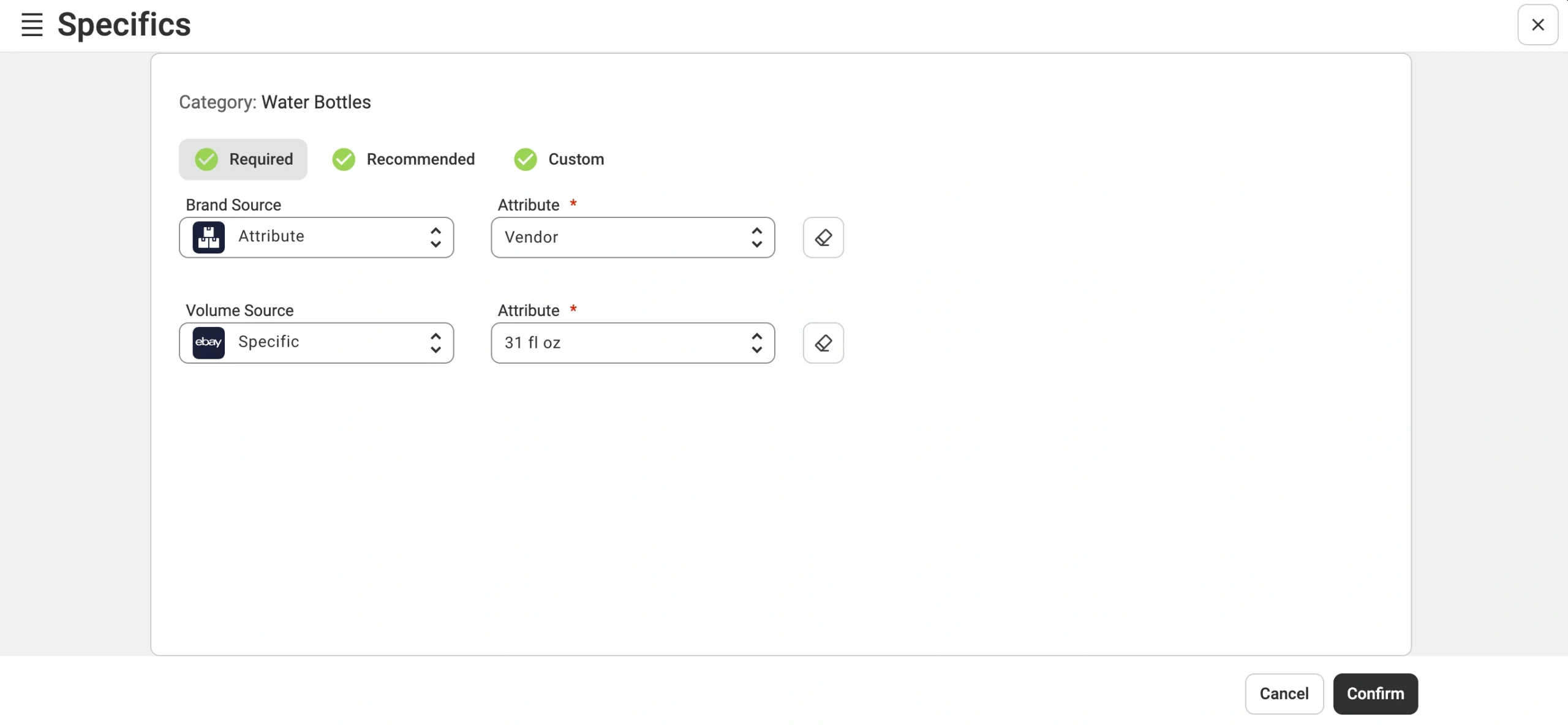
You can either select from eBay’s recommended values or choose attributes that the app will pull from your store’s custom fields. After completing this step, confirm your changes to proceed.
Step 6. Publish your listings
When you’re ready to make your multi-quantity/variational listings live, click the List Now button at the bottom of the screen. Your items will be sent to eBay and will become visible to potential buyers.
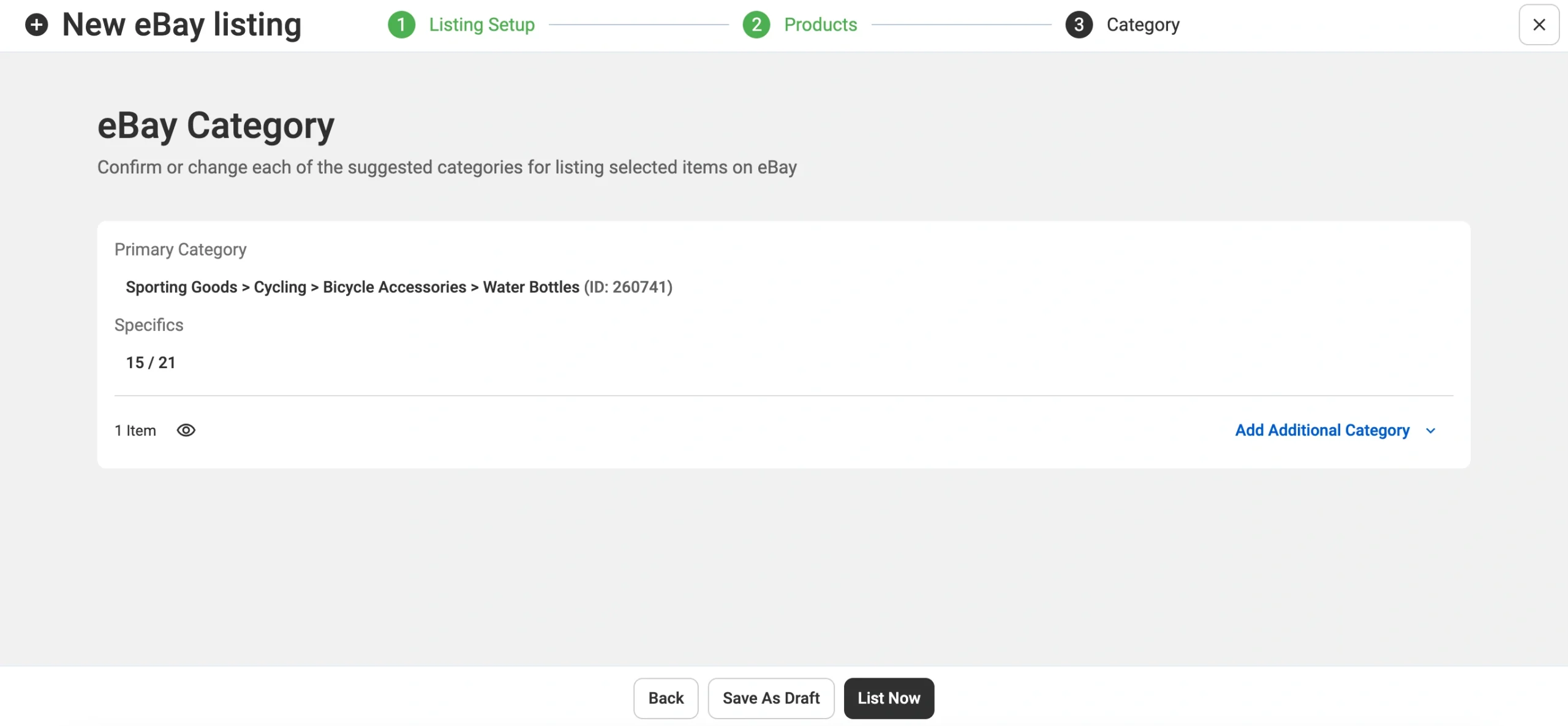
If you’re not ready to publish immediately but want to save your settings, click Save as Draft instead. This will store the items as Drafts in your eBay Listings, so you can review and publish them with a single click whenever you’re ready.
With M2E Cloud, listing products on eBay has never been easier. Create and manage multi-quantity and variation listings for up to 30 eBay marketplaces, including eBay Motors, right from your store’s admin panel. Optimize pricing, simplify order processing, and keep inventory in sync across major marketplaces.

Conclusion
That wraps up our guide on how to create an eBay multi-quantity listing with M2E Cloud. If you have any questions along the way, feel free to reach out to the M2E support team or refer to our user guides for additional assistance.

